


How to Sync Calendly KlickTipp Lead Management?


Description
Keep your email list in step with your calendar. The automation captures new and canceled meetings from Calendly and updates contacts in KlickTipp for both invitees and guests. It suits marketing and sales teams running demos, sessions, or events that need fast follow ups without manual imports.
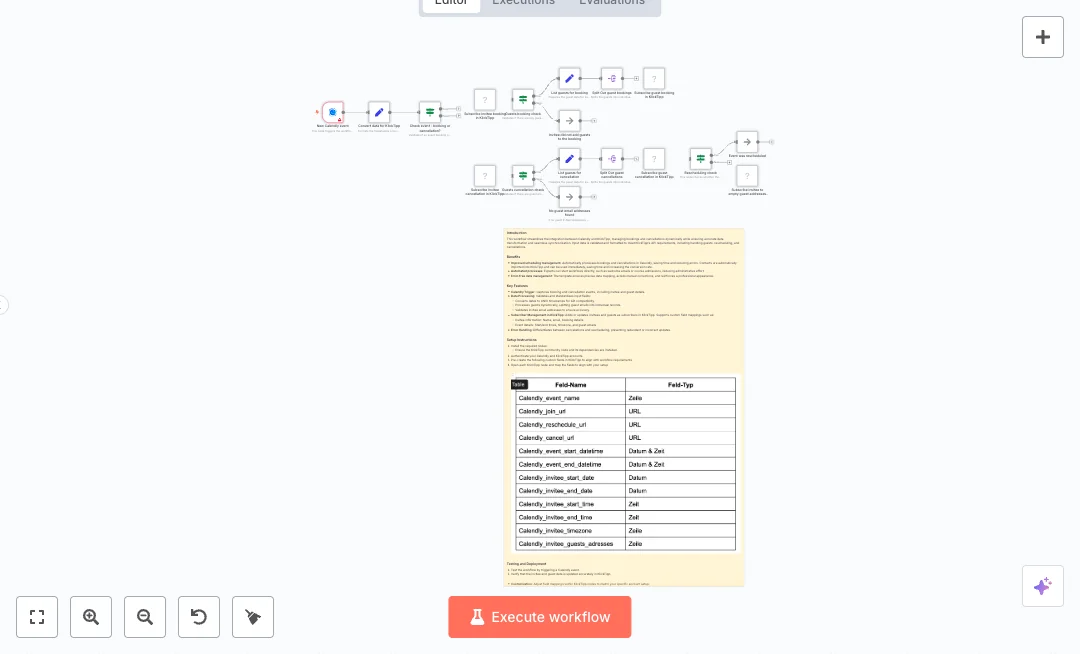
An app event from Calendly starts the run. Data is shaped for KlickTipp, including UNIX timestamps and time in seconds. A branch checks if it is a booking or a cancellation, and another check catches reschedules. On booking, the invitee is created or updated in KlickTipp and the guest emails are saved on the invitee record, then each guest is split and subscribed. On cancellation, the invitee gets a cancellation tag, the stored guest emails are read back, and each guest is tagged as canceled. If the event was only rescheduled, guest data is kept; if not, the guest email field can be cleared.
Setup is simple. Connect Calendly and KlickTipp, map custom fields, and set your list and tag IDs. Expect faster handoffs and cleaner data, cutting admin time on every meeting. Great for workshops with many guests, team demos, and course enrollments where guest tracking matters.

Tools Required
What this workflow does?
- Calendly event trigger reacts to new bookings and cancellations instantly.
- Data conversion maps dates to UNIX timestamps and time in seconds for KlickTipp fields.
- Branching logic separates booking vs cancellation and detects reschedules.
- Guest processing splits each guest email into its own item for clean subscription.
- Invitee record stores the guest email array so cancellations can be processed later.
- On cancellation, reads guest emails from the invitee record and applies cancellation tags.
- Conditional checks skip guest paths when no guests were added and log that outcome.
- Optional clearing of the guest email field prevents errors on future rebookings.
What are the benefits?
- Reduce manual list updates from 30 minutes to 2 minutes per event
- Automate 100 percent of booking and cancellation sync for invitees and guests
- Improve data quality by 90 percent with validated emails and consistent time formats
- Connect Calendly and KlickTipp for real time contact updates
- Handle reschedules and guest changes without duplicate records
How to set this up?
- Import the template into n8n: Create a new workflow in n8n > Click the three dots menu > Select 'Import from File' > Choose the downloaded JSON file.
- You'll need accounts with Calendly and KlickTipp. See the Tools Required section above for links to create accounts with these services.
- Open the New Calendly event node in n8n. In the Credential to connect with dropdown, click Create new credential and follow the on screen steps to connect your Calendly account. Select the organization and event scope if prompted.
- Install the KlickTipp community node if it is not already available. Then open any KlickTipp node, choose Credential to connect with, click Create new credential, and follow the on screen steps to sign in and test the connection.
- In your KlickTipp account, create or confirm custom fields for invitee first name, last name, event name, start time, end time, timezone, mobile number, and a field to store guest email addresses.
- Open each KlickTipp node and set your listId and tagId values for booked and canceled states. Match these to your KlickTipp lists and tags.
- Review the Convert data for KlickTipp set node. Keep the UNIX timestamp mapping and time in seconds since midnight, and confirm the mobile number and timezone fields map to your custom fields.
- Check the Guests booking check and Guests cancellation check nodes to ensure the conditions match your data, especially the field that stores guest emails.
- Activate the workflow. Book a test event in Calendly with at least one guest email. Confirm the invitee and each guest appear in KlickTipp with the booking tag and correct field values.
- Cancel the same event in Calendly. Verify the invitee and guests receive the cancellation tag. If guests do not update, confirm that the invitee record stored the guest email array and that the Split Out guest cancellations node is receiving it.
- If triggers do not fire, reauthenticate Calendly, check permissions for event subscriptions, and review the n8n execution logs for which branch ran. Fix any field mismatches, then retest booking, reschedule, and cancellation.
Need help or want to customize this?
Ask in the Free Futurise Community.
Similar Templates
These templates were sourced from publicly available materials across the web, including n8n’s official website, YouTube and public GitHub repositories. We have consolidated and categorized them for easy search and filtering, and supplemented them with links to integrations, step-by-step setup instructions, and personalized support in the Futurise community. Content in this library is provided for education, evaluation and internal use. Users are responsible for checking and complying with the license terms with the author of the templates before commercial use or redistribution.Where an original author was identified, attribution has been provided. Some templates did not include author information. If you know who created this template, please let us know so we can add the appropriate credit and reference link. If you are the author and would like this template removed from the library, email us at info@futurise.com and we will remove it promptly.
