Get Started
Screenshot of n8n workflow
FREE TEMPLATE
Connect DeepSeek Chat for Customer Support
12
Views
0
Downloads
15
Nodes
Download Template
Free
Preview Template
Utility Rating
6 / 10
Business Function
Customer Support
Automation Orchestrator
n8n
Integrations
Ollama
DeepSeek
Trigger Type
On app event
Approx setup time ≈ 35 min
Need help setting up this template?
Ask in our free Futurise community
About
Community
Courses
Events
Members
Templates

How to Connect DeepSeek Chat for Customer Support?

Leon Petrou
FREE TEMPLATE
Connect DeepSeek Chat for Customer Support
12
Views
0
Downloads
15
Nodes
Download Template
Free
Preview Template
Utility Rating
6 / 10
Business Function
Customer Support
Automation Orchestrator
n8n
Integrations
Ollama
DeepSeek
Trigger Type
On app event
Approximate setup time ≈ 35 minutes
Need help setting up this template?
Ask in our free Futurise community

Description

Turn your chat inbox into a smart help desk. Messages are captured and answered by AI so customers get fast, clear replies. Ideal for teams that want fast support without complex tools.

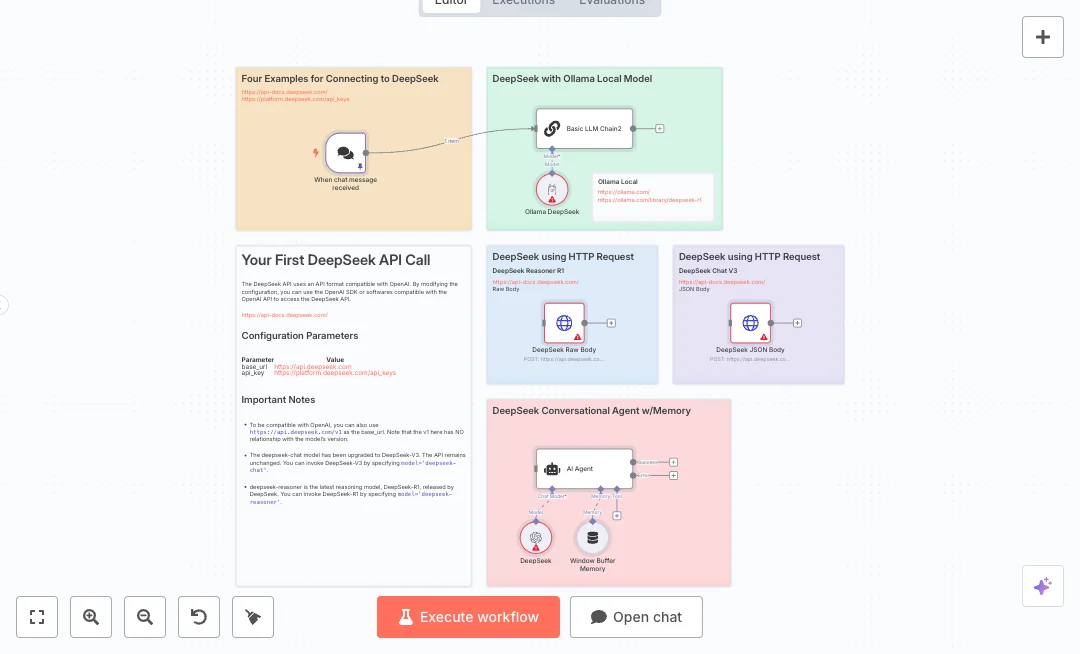
A chat message starts the flow. The input can go to a simple LLM Chain that uses a local Ollama DeepSeek model with a large context window. An AI Agent is also available with a fixed system message and a window memory, powered by the DeepSeek OpenAI compatible API. Two HTTP nodes show direct calls to the DeepSeek endpoint using JSON and raw bodies. You can switch between local and cloud models to balance speed, privacy, and cost.

You will need a DeepSeek API key or a running Ollama server with the deepseek r1 model. Set credentials in n8n, choose the model in each node, and test a message in the chat UI. Expect faster replies, lower costs for common questions, and more consistent answers because the memory keeps context. Use it for FAQs, triage before handoff, or after hours self service.

Copy link

Tools Required

Ollama
Sign up
Free tier: $0 (self-hosted local API)
n8n
Sign up
$24 / mo or $20 / mo billed annually to use n8n in the cloud. However, the local or self-hosted n8n Community Edition is free.
DeepSeek
Sign up
$0.035/1M input tokens (cache hit), $0.135/1M input tokens (cache miss), $0.550/1M output tokens

What this workflow does?

  • Chat trigger listens for new messages and starts the flow.
  • Basic LLM Chain with a clear system message for stable tone.
  • Ollama DeepSeek model with 16384 context and 0.6 temperature for local replies.
  • Conversational Agent with a window memory to keep recent context.
  • OpenAI compatible DeepSeek node for cloud reasoning responses.
  • HTTP Request node with JSON body to call DeepSeek chat completions.
  • HTTP Request node with raw body to test custom payloads and headers.
  • Header based auth for API calls and easy model switching per node.

What are the benefits?

  • Reduce first reply time from 5 minutes to under 30 seconds
  • Automate up to 70% of common questions with context memory
  • Lower API spend by routing simple chats to a local model
  • Support more chats at once by offloading routine answers
  • Connect cloud and local AI in one place for flexible control

How to set this up?

  1. Import the template into n8n: Create a new workflow in n8n > Click the three dots menu > Select 'Import from File' > Choose the downloaded JSON file.
  2. You'll need accounts with DeepSeek and Ollama. See the Tools Required section above for links to create accounts with these services.
  3. Create a DeepSeek API key in your DeepSeek account and keep it safe.
  4. In the n8n credentials manager, create a new OpenAI API credential named DeepSeek. Set the base URL to https://api.deepseek.com or https://api.deepseek.com/v1 and paste your API key. Save and test.
  5. In the credentials manager, create an HTTP Header Auth credential for DeepSeek. Add a header named Authorization with the value Bearer YOUR_API_KEY. Save and test.
  6. Install and run Ollama on your machine or server. Download the deepseek r1 model so it is available locally.
  7. In the n8n credentials manager, create an Ollama credential pointing to http://127.0.0.1:11434. Save and test.
  8. Open the Ollama DeepSeek node in the workflow. Select your Ollama credential, choose model deepseek-r1:14b, keep format default, and confirm temperature 0.6.
  9. Open the DeepSeek node (OpenAI compatible). Select the DeepSeek OpenAI credential you created and keep the system message as needed.
  10. Open the DeepSeek JSON Body and DeepSeek Raw Body nodes. Select the HTTP Header Auth credential. Confirm the URL is https://api.deepseek.com/chat/completions and the model fields match your target model.
  11. Start the workflow in n8n and open the chat interface. Send a short message and confirm you receive a reply from the local Ollama chain.
  12. If you get errors, check that Ollama is running, verify the API key for DeepSeek, and confirm the Authorization header format. For long chats, adjust context settings or switch to the cloud model for deeper reasoning.

Need help or want to customize this?

Similar Templates

n8n
Customer Support
Connect DeepSeek and Ollama Customer Support
Turn incoming chat messages into fast, helpful replies using a mix of cloud and local AI. Great for help desks or internal teams that need a responsive assistant that remembers recent context. A chat event starts the flow. Messages can be handled by a simple LLM chain powered by a local Ollama model, or sent to DeepSeek using direct HTTP calls. There is also an AI Agent option with a memory window so the bot can keep track of the last messages in a conversation. The setup shows both JSON and raw body calls to DeepSeek Chat V3 and the Reasoner model, plus a system message that guides tone and role. You can choose between local processing for cost control and cloud calls for higher capacity. You will need a DeepSeek API key and a running Ollama instance with the deepseek r1 model. Expect faster first replies, fewer repeated questions for agents, and more consistent answers. Useful for website chat, internal IT Q and A, and triage for common tickets. Follow the steps below to connect credentials, set model names, and run a quick end to end test.
2 views
view
n8n
Customer Support
Automate Telegram DeepSeek Support with Google Docs Memory
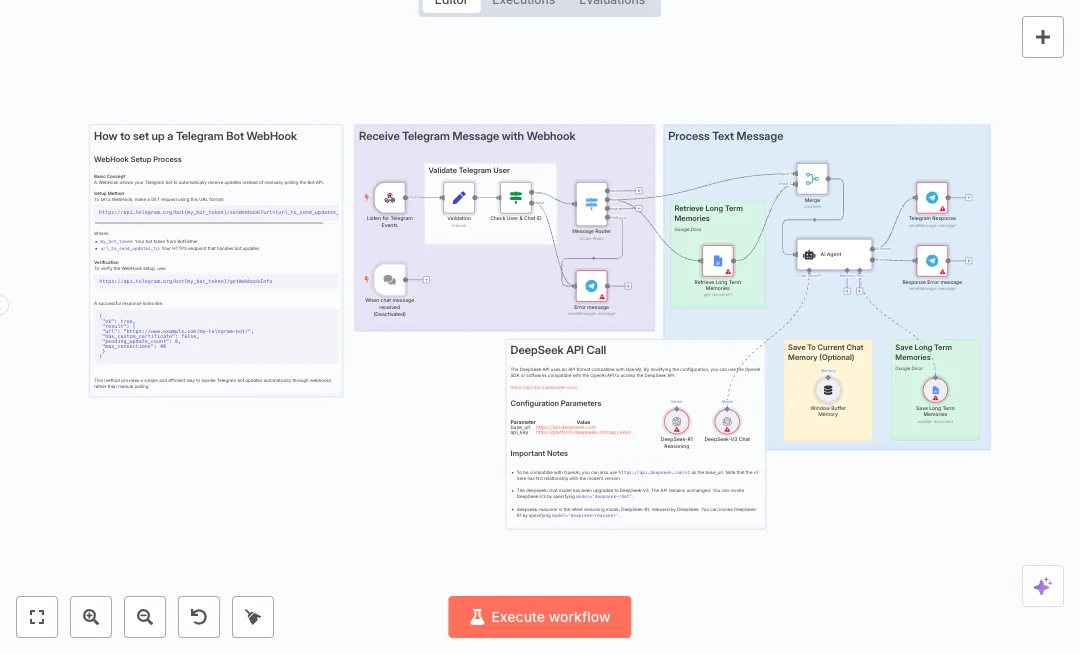
Give your team instant replies on Telegram with an AI helper that remembers past chats. Incoming messages get answered fast, while key details are stored for future conversations. Ideal for support lines, product FAQs, and busy teams that want faster help without extra staff. Messages arrive through a Telegram webhook and pass a user and chat ID check. A router only sends text to the AI path and returns a clear error for unsupported types. The agent uses DeepSeek models to write helpful replies, keeps short term context with a memory window, and reads long term notes from Google Docs. It can also write new facts back to Google Docs, so future chats feel personal. A merge step combines the user message with retrieved notes before the agent runs. Replies go straight back to Telegram, and an error path handles failures. A chat trigger is also present for n8n chat testing. You will need a Telegram bot, a Google account, and a DeepSeek API key. Set the Telegram webhook and verify it, connect Google Docs, and select your memory document. Teams can cut manual replies, keep a living memory of customers, and scale support as chat volume grows. Expect faster response times, fewer mistakes, and more consistent service across shifts.
9 views
view
n8n
Customer Support
Automate Support Replies with DeepSeek and Qdrant Approval
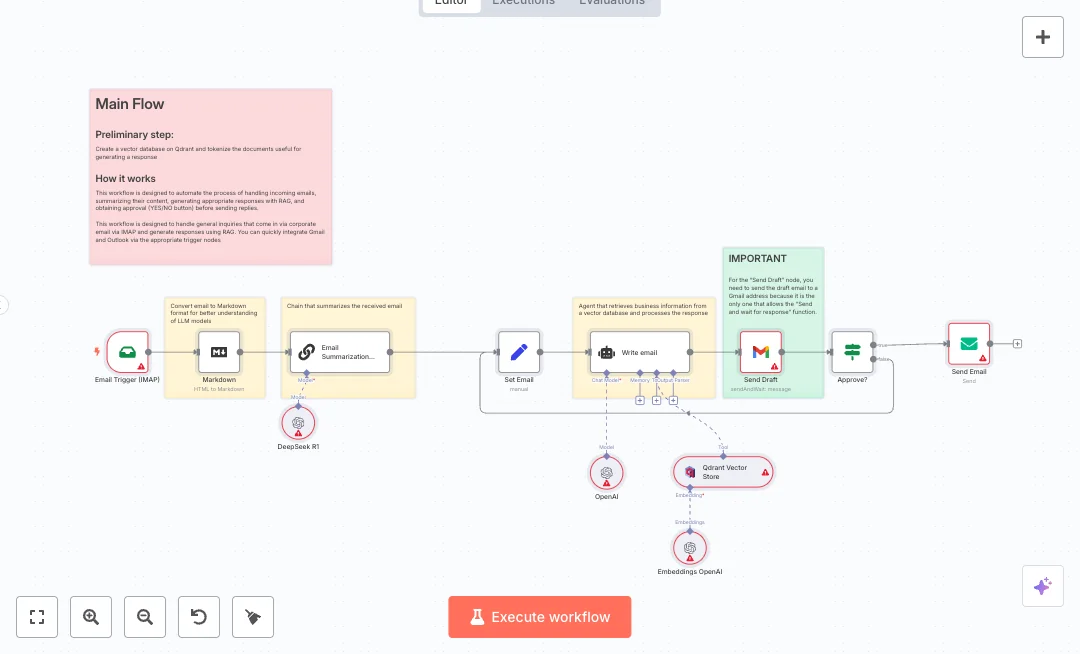
Get faster replies out of your support inbox without losing control. The flow reads new messages, summarizes them, pulls the right facts from your knowledge base, writes a short answer, and asks for a simple approval before sending. It suits teams that handle many inbound questions and want consistent, on brand replies. Here is how it works. New emails arrive through IMAP. The body is converted to Markdown so the models can read it clearly, then a summarization chain powered by DeepSeek creates a short brief. A Qdrant vector store, filled with your company documents using OpenAI embeddings, is queried to fetch helpful context. OpenAI writes a reply under 100 words. The draft is sent to Gmail where you approve with a YES or NO. If approved, the message goes out via SMTP with the original subject and recipient. To set it up, you need Gmail, IMAP and SMTP access, OpenAI, OpenRouter for the DeepSeek model, and a Qdrant collection with your documents. Add the collection name and API keys, then test with a real email. Teams typically cut handling time per message and keep answers consistent across agents. Good fits include product questions, policy requests, and simple sales inquiries that need fast, accurate replies.
0 views
view
See More Templates

These templates were sourced from publicly available materials across the web, including n8n’s official website, YouTube and public GitHub repositories. We have consolidated and categorized them for easy search and filtering, and supplemented them with links to integrations, step-by-step setup instructions, and personalized support in the Futurise community. Content in this library is provided for education, evaluation and internal use. Users are responsible for checking and complying with the license terms with the author of the templates before commercial use or redistribution.Where an original author was identified, attribution has been provided. Some templates did not include author information. If you know who created this template, please let us know so we can add the appropriate credit and reference link. If you are the author and would like this template removed from the library, email us at info@futurise.com and we will remove it promptly.