


How to Connect DeepSeek and Ollama Customer Support?


Description
Turn incoming chat messages into fast, helpful replies using a mix of cloud and local AI. Great for help desks or internal teams that need a responsive assistant that remembers recent context.
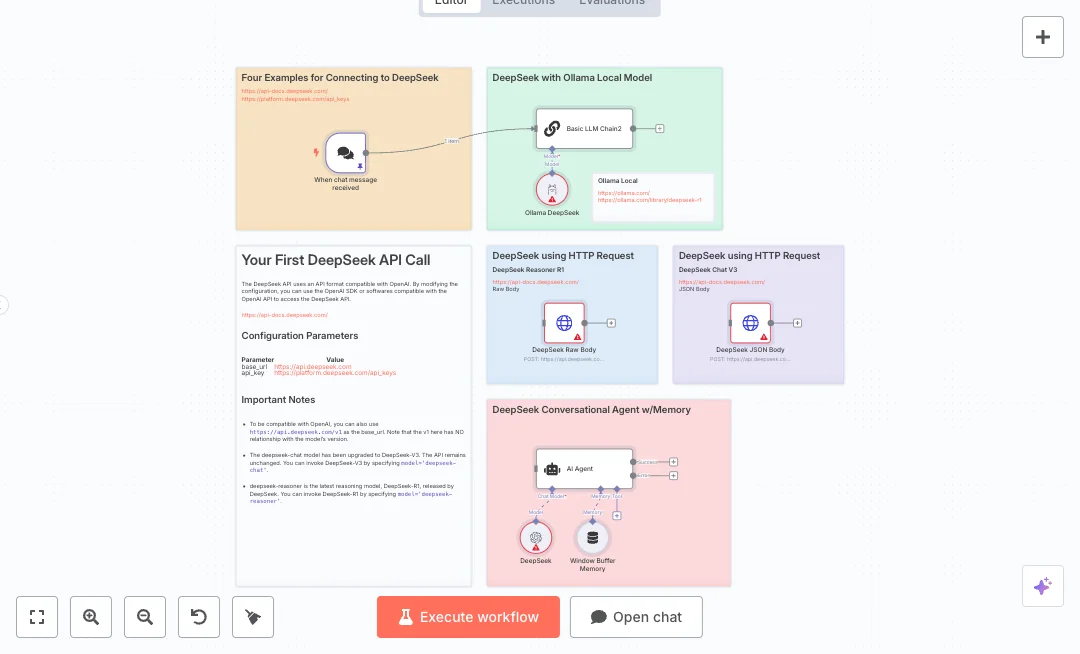
A chat event starts the flow. Messages can be handled by a simple LLM chain powered by a local Ollama model, or sent to DeepSeek using direct HTTP calls. There is also an AI Agent option with a memory window so the bot can keep track of the last messages in a conversation. The setup shows both JSON and raw body calls to DeepSeek Chat V3 and the Reasoner model, plus a system message that guides tone and role. You can choose between local processing for cost control and cloud calls for higher capacity.
You will need a DeepSeek API key and a running Ollama instance with the deepseek r1 model. Expect faster first replies, fewer repeated questions for agents, and more consistent answers. Useful for website chat, internal IT Q and A, and triage for common tickets. Follow the steps below to connect credentials, set model names, and run a quick end to end test.

Tools Required
What this workflow does?
- Chat message trigger starts a reply as soon as a user sends a message.
- Local inference with Ollama using the deepseek r1 model for low latency responses.
- Direct HTTP calls to DeepSeek Chat V3 and Reasoner for cloud processing.
- AI Agent with window memory to maintain recent conversation context.
- System message control to keep tone and policy consistent.
- JSON and raw body request examples to match different API needs.
- Optional streaming in the DeepSeek API call for faster partial replies.
What are the benefits?
- Reduce first response time from minutes to seconds
- Automate up to 60 percent of common support questions
- Keep context across recent messages for clearer answers
- Switch between local and cloud models to control cost
- Handle up to three times more chats per agent
How to set this up?
- Import the template into n8n: Create a new workflow in n8n > Click the three dots menu > Select 'Import from File' > Choose the downloaded JSON file.
- You'll need accounts with DeepSeek and Ollama. See the Tools Required section above for links to create accounts with these services.
- Create your DeepSeek API key: Sign in to the DeepSeek platform and generate an API key from the API keys page. Copy the key and store it in a safe place.
- In the n8n credentials manager, create a new OpenAI compatible credential for DeepSeek. Double click the DeepSeek model node, choose Create new credential, and follow the on screen steps. Set the base URL to https://api.deepseek.com or https://api.deepseek.com/v1 and paste your API key.
- Set up HTTP Header Auth for the DeepSeek HTTP Request nodes. Double click each HTTP Request node, create new credential, select HTTP Header Auth, add Authorization as the header name and Bearer YOUR_API_KEY as the value.
- Install and start Ollama on your machine. Open a terminal and run: ollama pull deepseek-r1:14b then ensure the service is running at http://127.0.0.1:11434.
- In n8n, create an Ollama credential. Double click the Ollama model node, choose Create new credential, set the host to http://127.0.0.1:11434 and save.
- Open the Chat Trigger node and ensure it is active. Use the n8n Chat interface or the provided link to send a test message and confirm the trigger fires.
- Configure message prompts. In the Basic LLM Chain, set the system message to guide the bot. In the AI Agent node, set the system message and connect the Window Buffer Memory node.
- Configure DeepSeek API calls. In the JSON Body node, set model to deepseek-chat and confirm messages are mapped. In the Raw Body node, set model to deepseek-reasoner for the Reasoner flow. Enable stream if you want partial outputs.
- Run a full test. Send a chat message, check the Execution log, and verify you get a response. If using local Ollama, confirm the model name matches deepseek-r1:14b. If using DeepSeek cloud, confirm the HTTP response status is 200.
- Troubleshooting: If you see 401, recheck the API key and header format. If the Ollama node fails, make sure the service is running and the model is pulled. If replies cut off, increase numCtx on the Ollama node or shorten prompts.
Need help or want to customize this?
Ask in the Free Futurise Community.
Similar Templates
These templates were sourced from publicly available materials across the web, including n8n’s official website, YouTube and public GitHub repositories. We have consolidated and categorized them for easy search and filtering, and supplemented them with links to integrations, step-by-step setup instructions, and personalized support in the Futurise community. Content in this library is provided for education, evaluation and internal use. Users are responsible for checking and complying with the license terms with the author of the templates before commercial use or redistribution.Where an original author was identified, attribution has been provided. Some templates did not include author information. If you know who created this template, please let us know so we can add the appropriate credit and reference link. If you are the author and would like this template removed from the library, email us at info@futurise.com and we will remove it promptly.
