


How to Automate Zoom Meeting Minutes and Tasks?


Description
Turn your Zoom calls into clear meeting minutes and instant follow ups. The flow turns a recent Zoom meeting into an email summary, ClickUp tasks, and an Outlook follow up event. It suits teams that run many calls and need fast, accurate next steps.
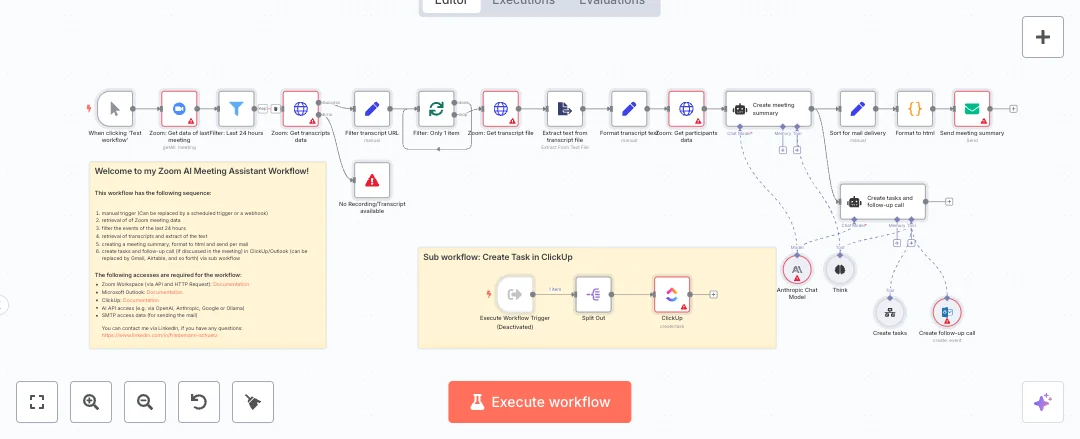
Here is how it works. It pulls the latest scheduled Zoom meetings and keeps only those from the last 24 hours. It downloads the transcript file, extracts and cleans the text, and fetches the participant list for context. An AI model writes formal minutes, then a code step formats them into clean HTML. The system emails the summary to your team. An AI agent also scans for action items and sends them to a sub workflow that creates tasks in ClickUp. It then creates a follow up call in Microsoft Outlook. If no transcript exists, it stops with a clear error so you can fix the meeting settings.
You need access to Zoom with cloud transcripts, OpenAI, ClickUp, Microsoft Outlook, and an SMTP email account. After setup, most meetings go from raw transcript to ready tasks in minutes. Expect less manual note taking, faster handoffs, and fewer missed actions. This is great for sales calls, client check ins, and internal project reviews where next steps matter.

Tools Required
What this workflow does?
- Gets recent scheduled Zoom meetings and filters the last 24 hours
- Downloads the Zoom transcript file and extracts clean text
- Fetches participant data to enrich the meeting summary
- Generates formal minutes using an OpenAI chat model
- Formats the minutes into an HTML email with a custom code step
- Sends the summary by email using your SMTP account
- Uses an AI agent to find action items and route them to a sub workflow
- Creates tasks in ClickUp for clear ownership and due dates
- Books a follow up call in Microsoft Outlook when needed
- Stops with a clear error if no transcript is available
What are the benefits?
- Reduce manual minutes from 45 minutes to about 5 minutes per meeting
- Automate up to 80 percent of follow up admin work after calls
- Cut missed action items by up to 70 percent with AI extraction
- Connect Zoom, OpenAI, ClickUp, Microsoft Outlook, and email in one flow
- Handle dozens of meetings per day without extra staff
How to set this up?
- Import the template into n8n: Create a new workflow in n8n > Click the three dots menu > Select 'Import from File' > Choose the downloaded JSON file.
- You'll need accounts with Zoom, OpenAI, ClickUp, Microsoft Outlook and SMTP. See the Tools Required section above for links to create accounts with these services.
- In the n8n credentials manager, create an OpenAI credential. Use your API key from the OpenAI account page. Name the credential so you can find it later.
- Create a Zoom OAuth2 credential in the n8n credentials manager. Follow the on screen steps to connect your Zoom account. Make sure Zoom cloud recording and audio transcript are enabled in your Zoom settings.
- Create a Microsoft Outlook OAuth2 credential in the n8n credentials manager. Allow calendar and mail permissions when prompted.
- Create a ClickUp OAuth2 credential in the n8n credentials manager. Approve access to your workspace and team.
- Create an SMTP credential in the n8n credentials manager. Enter your email server host, port, username, and password. Enable TLS if your provider requires it. Use the test feature to confirm it connects.
- Open each Zoom node and choose your Zoom credential in the Credential to connect with dropdown. Do this for Get data of last meeting, Get transcript file, and Get participants data.
- Open the OpenAI nodes and select your OpenAI credential. Confirm the model field matches your plan.
- Open the Email Send node. Set From Email to your sender address. Set To Email to your team inbox or a variable that matches your needs. Keep the subject mapping as provided or adjust as needed.
- Open the Microsoft Outlook tool node. Select your Outlook credential. Pick the correct calendar or mailbox if the node shows these options.
- Open the ClickUp node and the task sub workflow configuration if needed. Select your ClickUp credential and set the workspace or list fields required for task creation.
- Check the Filter Last 24 hours node. Adjust the time window to fit your review period and confirm your timezone settings in n8n.
- Run the workflow with the manual trigger. Use a recent Zoom meeting that has a cloud transcript. Confirm you receive the HTML email, see tasks in ClickUp, and see the follow up in Outlook.
- Troubleshoot common issues. If you see No Recording or Transcript available, confirm the Zoom meeting had cloud recording and transcription enabled. If an API call fails with 401, reauthorize the related credential. If the email is blank, check the AI output and the Format to HTML code step.
Need help or want to customize this?
Ask in the Free Futurise Community.
Similar Templates
Credits: Author: Friedemann Schuetz. Contact: LinkedIn profile - these templates were sourced from publicly available materials across the web, including n8n’s official website, YouTube and public GitHub repositories. We have consolidated and categorized them for easy search and filtering, and supplemented them with links to integrations, step-by-step setup instructions, and personalized support in the Futurise community. Content in this library is provided for education, evaluation and internal use. Users are responsible for checking and complying with the license terms with the author of the templates before commercial use or redistribution. If you are the author and would like this template removed from the template library, email us at info@futurise.com and we will remove it promptly.
