


How to Automate WhatsApp RAG Support with Google Drive and Qdrant?


Description
Turn WhatsApp into a smart help channel that answers customer questions with your own files. It is great for support teams and retail stores that want fast and accurate replies without hiring more agents.
Here is how it works. A manual setup path builds a Qdrant collection, pulls documents from Google Drive, splits them into chunks, and creates OpenAI embeddings. The live chat path listens to Meta webhooks, checks if the event is a real message, and sends the text to an AI agent. The agent uses a system prompt for an electronics store, chat memory, and a RAG search over Qdrant to craft helpful answers. It sends replies back through WhatsApp, while status updates are filtered out. Having the same URL for verification and message delivery makes the webhook setup simple.
You will need access to WhatsApp Cloud API, a Meta app for webhooks, Google Drive, OpenAI, and a Qdrant endpoint. Expect faster responses, fewer repeat questions, and consistent answers pulled from your files. Common uses include product Q and A, order help, troubleshooting, and store policy questions. Setup is clear and can be tested in steps, so teams can go live with confidence.

Tools Required
What this workflow does?
- Webhook verification and response with the same URL for simple Meta setup
- Filter to detect real WhatsApp messages and ignore status events
- AI agent with a custom system prompt tuned for an electronics store
- Chat memory to keep context across messages in a conversation
- Google Drive folder fetch and file download for knowledge intake
- Token based text splitter and default document loader
- OpenAI embeddings and Qdrant vector store insert and retrieval
- Manual path to create and refresh the Qdrant collection before going live
- Direct reply to customers through WhatsApp send actions
What are the benefits?
- Reduce first response time from minutes to seconds
- Automate up to 70% of repetitive WhatsApp questions
- Improve answer accuracy by referencing your own files
- Handle 3 times more concurrent chats without extra staff
- Connect WhatsApp, Google Drive, OpenAI, and Qdrant in one flow
- Keep answers consistent with a defined system prompt
How to set this up?
- Import the template into n8n: Create a new workflow in n8n > Click the three dots menu > Select 'Import from File' > Choose the downloaded JSON file.
- You'll need accounts with WhatsApp Cloud API, Google Drive, OpenAI, Qdrant and Meta Webhooks. See the Tools Required section above for links to create accounts with these services.
- In the n8n credentials manager, create OpenAI credentials. If unsure, double click the OpenAI nodes and in the credential dropdown click Create new credential, then follow the on screen steps and paste your API key from the OpenAI API page.
- Create Qdrant credentials. Double click the Qdrant nodes, choose Create new credential, then enter your Qdrant URL and API key from your Qdrant dashboard.
- Connect Google Drive. Open the Google Drive nodes, click Create new credential, and complete the OAuth prompt with a Google account that has access to the target folder.
- Set WhatsApp Cloud API credentials. Open the WhatsApp nodes, create new credentials, and paste your WhatsApp Cloud API token from your Meta for Developers app.
- Configure Qdrant endpoints. In the Create collection and Refresh collection HTTP Request nodes, replace QDRANTURL and COLLECTION with your actual endpoint and collection name. Keep Content Type as application/json.
- Point the Google Drive Get folder node to the folder that holds your knowledge files. Confirm the Download Files node pulls the expected file types.
- Check the embeddings path. Ensure the Token Splitter flows into Default Data Loader, then into the Qdrant Vector Store. Verify the Embeddings OpenAI node connects to the vector store for insert.
- Open the AI Agent node and set the system message to match your brand voice and product scope. Confirm the connected OpenAI Chat Model is the model you want to use.
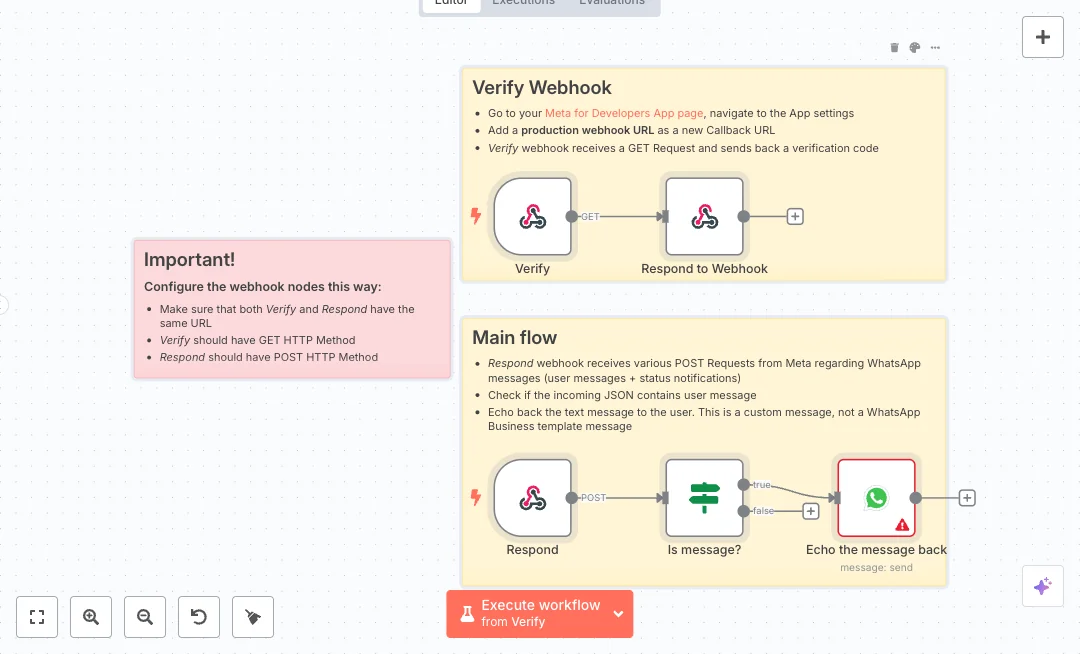
- Set up Meta webhooks. In your Meta app, add the same webhook URL shown in the n8n Verify and Respond webhook nodes. Set Verify to GET and Respond to POST. During verification, Meta will send a code that n8n returns to confirm the webhook.
- Run the manual trigger once to create or refresh the Qdrant collection and ingest your Google Drive files. Check the execution log to confirm points were inserted.
- Test the live path. Send a WhatsApp message to your number. The If node should route only real messages to the AI Agent. You should receive a reply based on your files.
- Troubleshoot common issues. If verification fails, confirm both webhook nodes share the exact same URL and the methods are correct. If no answers return, check Qdrant URL, API key, and that embeddings were created. If messages are not detected, review the JSON path in the AI Agent input and the If node condition.
Need help or want to customize this?
Ask in the Futurise Pro Community.
Similar Templates
These templates were sourced from publicly available materials across the web, including n8n’s official website, YouTube and public GitHub repositories. We have consolidated and categorized them for easy search and filtering, and supplemented them with links to integrations, step-by-step setup instructions, and personalized support in the Futurise community. Content in this library is provided for education, evaluation and internal use. Users are responsible for checking and complying with the license terms with the author of the templates before commercial use or redistribution.Where an original author was identified, attribution has been provided. Some templates did not include author information. If you know who created this template, please let us know so we can add the appropriate credit and reference link. If you are the author and would like this template removed from the library, email us at info@futurise.com and we will remove it promptly.
