


How to Automate OpenAI Rent Payment Reconciliation?


Description
Turn bank statement CSVs into clear rent payment checks with an AI assistant. Ideal for property teams that keep tenant and property records in a local Excel file and need fast, accurate reconciliation.
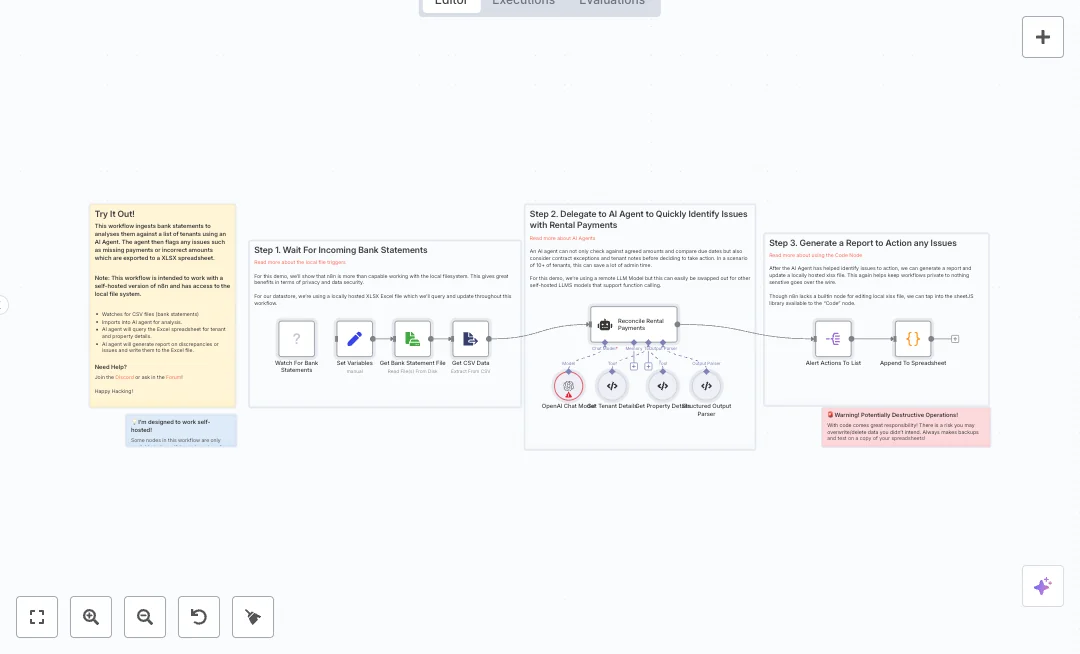
A folder watch picks up new CSV files and parses them into rows. Each row goes to an AI agent that uses OpenAI to match payments to tenants and properties, using two tools that read your Excel workbook. The agent returns a structured list of actions like missing payment, wrong amount, or unmatched reference. A parser shapes the output into a fixed format. The flow then splits these items and appends them into an Alerts sheet in the same workbook.
Run this on a self hosted n8n setup with access to your local files. Point the trigger to your bank statement folder and set the path to your Excel workbook. Expect big time savings when handling 10 or more tenants and fewer mistakes from manual checks. Use it for arrears monitoring, partial payments, and incorrect references while keeping sensitive data on your own system.

Tools Required
What this workflow does?
- Local folder watch starts the run when a new CSV bank statement is added.
- CSV extraction converts the file into clean transaction rows.
- AI agent powered by OpenAI reviews each payment with tenant and property context.
- Custom tools read tenant and property sheets from your local Excel workbook.
- Structured output parser enforces a clear alert format for each issue.
- Code step appends results to an Alerts sheet in the same workbook.
What are the benefits?
- Reduce manual reconciliation from hours to minutes per statement
- Improve accuracy by up to 80 percent with consistent AI checks
- Keep sensitive bank and tenant data on your local system
- Handle dozens of tenants without adding headcount
- Unify statements, tenant records, and alerts in one flow
How to set this up?
- Import the template into n8n: Create a new workflow in n8n > Click the three dots menu > Select 'Import from File' > Choose the downloaded JSON file.
- You'll need accounts with OpenAI. See the Tools Required section above for links to create accounts with these services.
- In the n8n credentials manager, create a new OpenAI credential. Go to your OpenAI account, open the API Keys page, create a secret key, then paste it into the new credential in n8n. Give the credential a clear name like OpenAI Main.
- Open the OpenAI Chat Model node and choose your new OpenAI credential. Select an available model from your account.
- Open the Local File Trigger node and set the folder path to your bank statement directory. Use a self hosted n8n instance that can read this path.
- Open the Set Variables node and update the spreadsheet_location value to the full path of your Excel workbook.
- Ensure your workbook contains sheets named tenants, properties, and alerts. Include tenant details such as ID, name, rent amount, and notes, plus property details like ID, address, and postcode.
- Drop a sample CSV bank statement into the watched folder. Confirm a new execution starts automatically.
- Check the Get CSV Data node output to see parsed rows. Then open the Reconcile Rental Payments node output to view the structured list of actions.
- Open your Alerts sheet and confirm new rows were appended. If nothing appears, check file permissions and confirm the path in Set Variables is correct.
- If errors occur, verify your OpenAI API key is valid, the CSV has the correct format, and the n8n instance has read and write access to the workbook file. Back up your Excel file before testing changes.
Need help or want to customize this?
Ask in the Free Futurise Community.
Similar Templates
These templates were sourced from publicly available materials across the web, including n8n’s official website, YouTube and public GitHub repositories. We have consolidated and categorized them for easy search and filtering, and supplemented them with links to integrations, step-by-step setup instructions, and personalized support in the Futurise community. Content in this library is provided for education, evaluation and internal use. Users are responsible for checking and complying with the license terms with the author of the templates before commercial use or redistribution.Where an original author was identified, attribution has been provided. Some templates did not include author information. If you know who created this template, please let us know so we can add the appropriate credit and reference link. If you are the author and would like this template removed from the library, email us at info@futurise.com and we will remove it promptly.
