


How to Automate IMAP to LINE Email Summaries?


Description
Turn long email threads into quick summaries sent to LINE. Great for busy teams that live in LINE and want a short daily digest without opening the inbox.
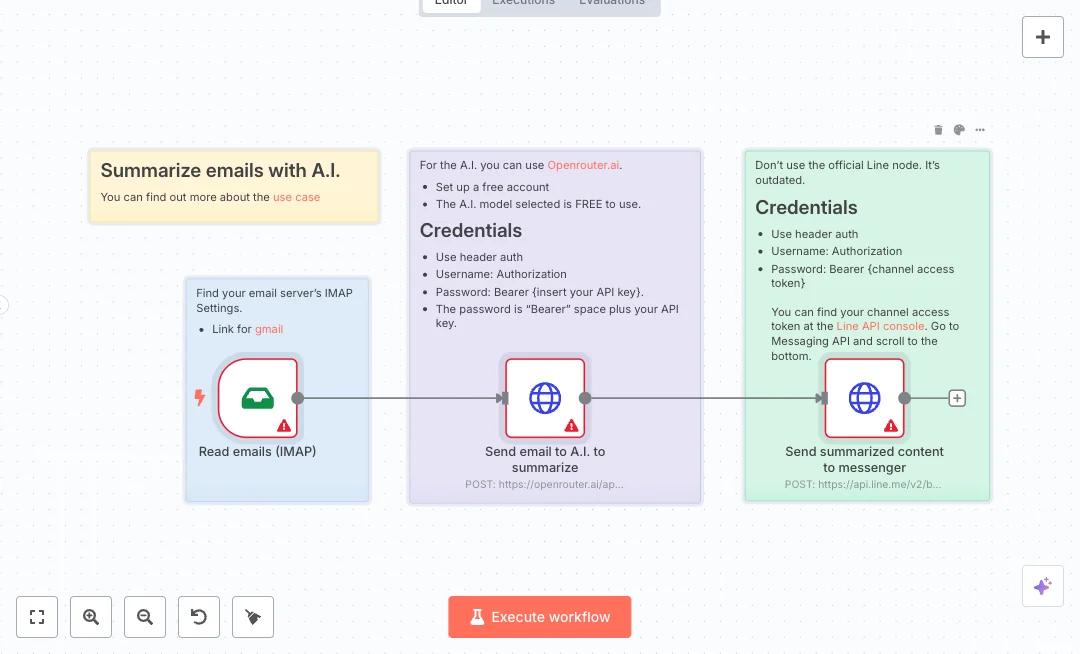
The sequence reads emails over IMAP, sends the content to an AI model through OpenRouter to create a summary, then pushes that summary to a LINE user via the LINE Messaging API. The flow runs across three nodes: Read emails IMAP, an HTTP Request to OpenRouter for summarization, and a second HTTP Request that posts to LINE. New lines are preserved in the message so the digest stays readable. This setup cuts inbox scanning, helps you spot important items faster, and keeps updates where your team already communicates.
You will need IMAP access to your email account, an OpenRouter API key, and a LINE channel access token with push message permission. In n8n, both HTTP calls use simple header auth with a Bearer token. Expect to reduce manual reading time by at least 30 to 45 minutes per day, especially for roles that get status updates, order notices, or vendor emails. It works well for store managers, field teams, and operations leads who prefer LINE for daily communication.

Tools Required
What this workflow does?
- Reads incoming mail using IMAP and passes the content to the next step
- Calls OpenRouter chat completions to generate a clean summary from the email text
- Pushes the summary to a LINE user with the LINE Messaging API
- Uses header authentication with Bearer tokens for both HTTP requests
- Formats message text to keep new lines for better readability in LINE
What are the benefits?
- Reduce inbox reading time from 45 minutes to 5 minutes with AI summaries sent to LINE
- Automate up to 90 percent of daily email triage for operations updates
- Improve focus by keeping only the key points and action items
- Connect email and LINE with no manual copy and paste
- Deliver readable digests that preserve line breaks for quick scanning
How to set this up?
- Import the template into n8n: Create a new workflow in n8n > Click the three dots menu > Select 'Import from File' > Choose the downloaded JSON file.
- You'll need accounts with IMAP Email, OpenRouter and LINE Messaging API. See the Tools Required section above for links to create accounts with these services.
- Enable IMAP in your email provider and note the IMAP host, port, username, and password. Some providers require an app password.
- In n8n, open the Read emails IMAP node. In the Credential to connect with field, click Create new credential and enter your IMAP details. Save and test the connection.
- Create an OpenRouter account and generate an API key from the API page. Copy the key to your clipboard.
- Open the Send email to A.I. to summarize node. In credentials, choose HTTP Header Auth or click Create new credential. Add a header key Authorization with value Bearer YOUR_API_KEY. Save.
- Confirm the OpenRouter URL is https://openrouter.ai/api/v1/chat/completions and the JSON body includes model and messages fields as provided.
- In the LINE Developers console, create a Messaging API channel and copy the Channel access token. Ensure push messages are enabled.
- Open the Send summarized content to messenger node. Create a new HTTP Header Auth credential and set Authorization with value Bearer YOUR_LINE_CHANNEL_ACCESS_TOKEN. Save.
- Set the to field in the LINE JSON body to the target user or group ID. For testing, use your own user ID from LINE tools.
- Run the workflow in n8n. Check the execution for the OpenRouter response path choices[0].message.content and confirm a message arrives in LINE.
- If emails are not found, verify IMAP folder and filters in the IMAP node. If LINE fails, confirm the token scope and that the user ID is correct.
Need help or want to customize this?
Ask in the Free Futurise Community.
Similar Templates
Credits: Use case article - these templates were sourced from publicly available materials across the web, including n8n’s official website, YouTube and public GitHub repositories. We have consolidated and categorized them for easy search and filtering, and supplemented them with links to integrations, step-by-step setup instructions, and personalized support in the Futurise community. Content in this library is provided for education, evaluation and internal use. Users are responsible for checking and complying with the license terms with the author of the templates before commercial use or redistribution. If you are the author and would like this template removed from the template library, email us at info@futurise.com and we will remove it promptly.
