Get Started
Screenshot of n8n workflow
FREE TEMPLATE
Automate Image Watermarking
13
Views
0
Downloads
16
Nodes
Download Template
Free
Preview Template
Utility Rating
6 / 10
Business Function
Marketing
Automation Orchestrator
n8n
Integrations
Trigger Type
Manual trigger
Approx setup time ≈ 25 min
Need help setting up this template?
Ask in our free Futurise community
About
Community
Courses
Events
Members
Templates

How to Automate Image Watermarking?

Leon Petrou
FREE TEMPLATE
Automate Image Watermarking
13
Views
0
Downloads
16
Nodes
Download Template
Free
Preview Template
Utility Rating
6 / 10
Business Function
Marketing
Automation Orchestrator
n8n
Integrations
Trigger Type
Manual trigger
Approximate setup time ≈ 25 minutes
Need help setting up this template?
Ask in our free Futurise community

Description

Protect your brand images without opening a design tool. This build places a logo or watermark on top of a background image, centered by default, so teams can publish consistent visuals faster.

The flow starts on a manual run and downloads two files with HTTP requests. It reads the size of each image, renames the binary parts to bg and top, and merges them into one item. A code step calculates the center point from both image sizes. The composite step then places the top image over the background at exact x and y positions, and saves the final file. This approach handles binary files directly and gives you precise control of placement and output format.

To set it up, swap the two image URLs with your own background and transparent logo files. Make sure the overlay is the same size or smaller than the background, or adjust size before placing it. Expect a major time win on social graphics, product shots, and internal templates. Teams can turn a 10 minute manual edit into under a minute, while keeping every asset on brand.

Copy link

Tools Required

n8n
Sign up
$24 / mo or $20 / mo billed annually to use n8n in the cloud. However, the local or self-hosted n8n Community Edition is free.

What this workflow does?

  • Manual run to process images on demand
  • HTTP requests download the background and the overlay image
  • Image info steps read width and height for both files
  • Code nodes rename binary properties to bg and top for clean handling
  • Merge node pairs both images into a single item for processing
  • Center position is calculated from both image sizes in a code step
  • Composite step overlays top onto bg at exact x and y positions
  • Final image saved in your chosen format and file name

What are the benefits?

  • Reduce manual editing from 10 minutes per image to under 1 minute
  • Keep logo placement consistent across every asset
  • Lower error rates by placing overlays with exact coordinates
  • Scale image branding by running the flow whenever needed
  • Work directly with image files without opening a design app

How to set this up?

  1. Import the template into n8n: Create a new workflow in n8n > Click the three dots menu > Select 'Import from File' > Choose the downloaded JSON file.
  2. Open the Get the Image for Background node and replace the URL with your background image link. Use a direct file URL that returns a 200 status code.
  3. Open the Get Logo for the Watermark node and replace the URL with your transparent logo image link. PNG with transparency works best.
  4. If your files require authentication, double click each HTTP Request node, then on the Credential to connect with dropdown, click Create new credential and follow the on screen instructions for the required auth method.
  5. Run the workflow with the manual trigger. In the execution data, confirm each HTTP node shows a binary file under the data property.
  6. Check the Get Meta steps and the Set nodes to see metaBg and metaTop objects with width and height values.
  7. Open the Calculate Center code node if you need offsets. The default logic centers the overlay. Add or subtract pixels to move the logo to a corner.
  8. Open the composite step and adjust the output format and file name if needed. The result is stored in the bg binary property.
  9. Execute the workflow again and download the composite image from the final node output. Verify that the logo sits in the intended position.
  10. Troubleshoot: If the logo does not appear, confirm the overlay image is smaller than or equal to the background size, verify the binary property names are top and bg, and ensure the HTTP URLs are valid.

Need help or want to customize this?

Similar Templates

n8n
Marketing
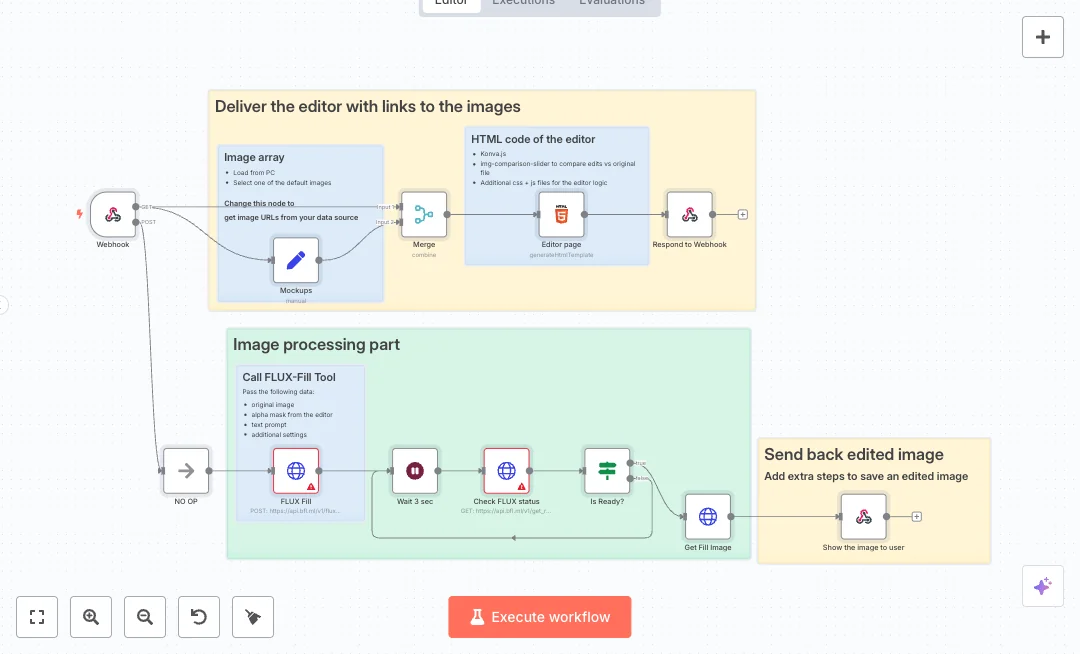
Generate FLUX Image Fill Marketing Assets
Create edited images fast with a simple web editor that sends a prompt and mask to an AI image fill service, then returns a finished file to the browser. Ideal for marketing teams that need quick product touchups, ad variants, and social images without heavy design tools. A public webhook serves a lightweight editor page. Users pick a default image or supply a link, paint a mask, and add a short prompt. The flow calls the FLUX Fill API, waits a few seconds, and polls the job status until the result is ready. When done, it fetches the generated image and responds with the correct file type so the browser can show or download it. Merge and Set nodes feed the editor with image options. HTML and Respond to Webhook nodes deliver the page. Wait, If, and HTTP Request nodes handle the job loop. Setup needs an API key for FLUX and an internet reachable n8n webhook. Add your own image URLs in the Set node or connect to a data source. Expect big time savings when making repeat edits like background fixes and object changes. Marketing teams and content creators can make many versions in minutes and keep designers focused on higher value work.
7 views
view
n8n
Marketing
Generate FAL AI Images to Google Drive Library
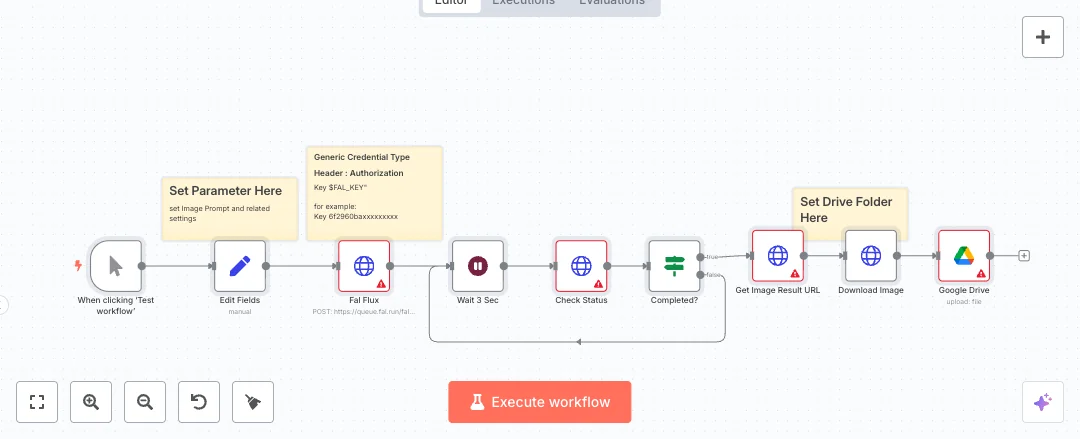
Create AI images on demand and save them straight to Google Drive. Ideal for marketing teams that need quick drafts for ads, social posts, or mockups without switching tools. You click run, set a prompt, and the finished file lands in your folder. The flow starts with a manual run, then a Set step loads your prompt, size, and quality settings. A request goes to the FAL AI Flux endpoint to start image generation. The system waits a few seconds, checks job status, and loops until it is done. When complete, it grabs the result URL, downloads the first image, and uploads it to your chosen Google Drive folder using the file name returned by the API. The polling loop keeps things reliable and prevents timeouts while the image is being created. Setup needs a FAL AI API key and a Google Drive connection. You can change the prompt, width, height, steps, and guidance to match your brand style. Teams can cut the download and upload chores and spend more time on creative choices. Use it to produce ad variations, brainstorm visuals, or build product mockups at scale, all stored in a single Drive library ready for review and sharing.
14 views
view
n8n
Marketing
Generate FLUX Fill Marketing Images
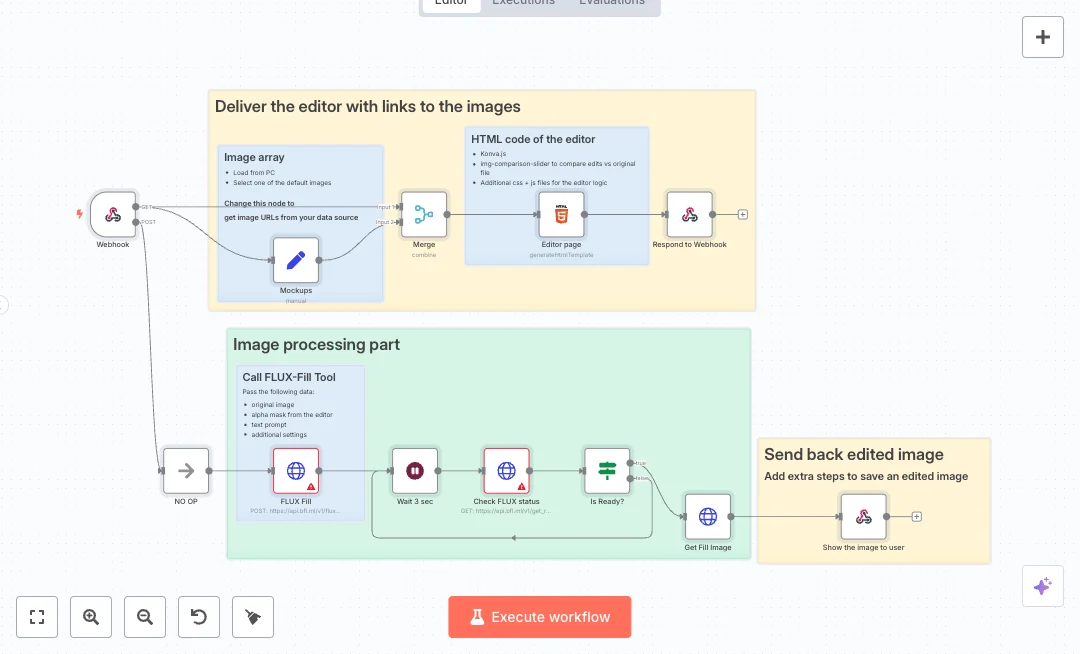
Turn a simple web link into an in browser image editor that produces AI fill results fast. Great for marketing and design teams that need quick image touchups, background fixes, and creative variants. A webhook serves an editor page built with HTML that lets users load an image, paint a mask, and write a short prompt. When the user submits, the flow sends the original image, the alpha mask, and the prompt to the Black Forest Labs FLUX Fill API. The system waits a few seconds, checks the job status, and keeps polling until the result is ready. It then fetches the final image and returns it to the browser with the correct file type. A separate response returns the editor page itself so people can work inside the browser. You will need an API key for the FLUX service and a credential in n8n Cloud using header auth. Expect edits that used to take an hour to drop to a few minutes per image. Ideal for ad variants, product photo cleanup, and social content where masks and fills are common. Follow the steps to map your image URLs, confirm the webhook runs, and tune the wait time for stable results.
11 views
view
See More Templates

Credits: let the work flow - these templates were sourced from publicly available materials across the web, including n8n’s official website, YouTube and public GitHub repositories. We have consolidated and categorized them for easy search and filtering, and supplemented them with links to integrations, step-by-step setup instructions, and personalized support in the Futurise community. Content in this library is provided for education, evaluation and internal use. Users are responsible for checking and complying with the license terms with the author of the templates before commercial use or redistribution. If you are the author and would like this template removed from the template library, email us at info@futurise.com and we will remove it promptly.