


How to Automate Gumroad to MailerLite Onboarding?


Description
Turn every Gumroad sale into a welcome path for new buyers. Customers are added to a MailerLite group and their details go into a Google Sheets CRM right away. Perfect for creators and small teams who want email sequences to start as soon as someone buys.
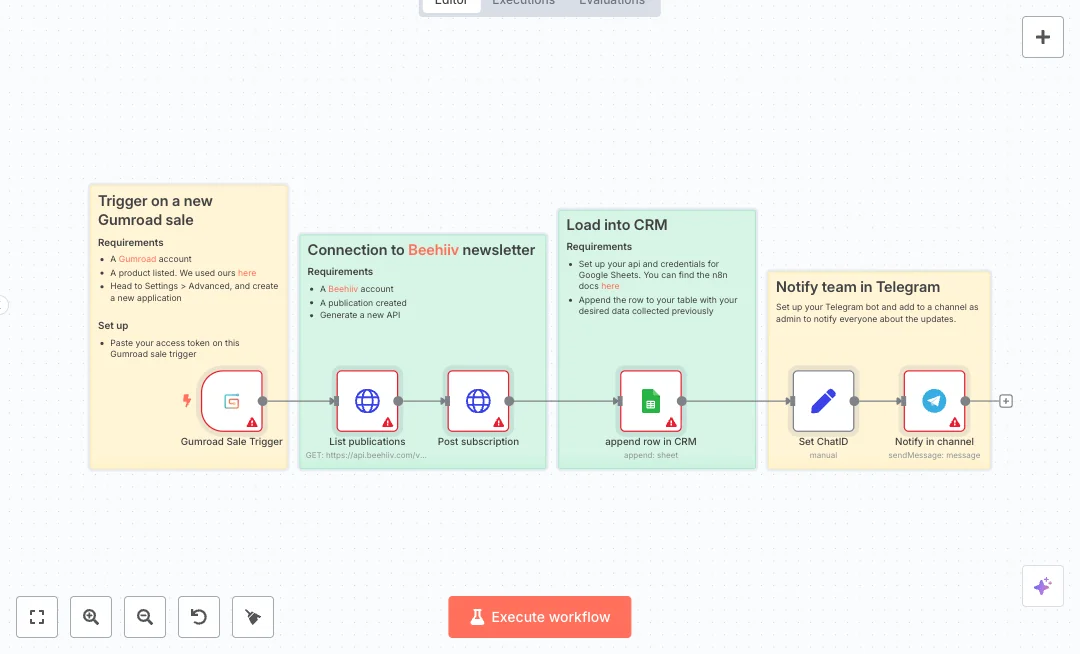
A Gumroad sale event starts the flow. The subscriber node in MailerLite creates the contact with the buyer email and stores the country from the sale data. An authenticated HTTP request then assigns that contact to a MailerLite group so your onboarding emails can begin without delay. The process also writes the sale date, email, and country to a Google Sheet for tracking and follow up. Data moves step by step, so the group assignment runs only after the contact is created, and field mapping uses dynamic values from the Gumroad event.
You will need a Gumroad access token, a MailerLite API key, and a Google Sheets connection. Expect faster follow up, fewer mistakes, and clear records with almost no manual work. Most teams cut manual updates across spreadsheets and email tools by more than 80 percent in the first week. Great for digital product stores, templates, and course sellers who rely on quick post purchase messaging.

Tools Required
What this workflow does?
- Gumroad Sale Trigger listens to new purchases and captures buyer email and sale timestamp.
- MailerLite subscriber creation maps the email and saves country as a custom field.
- HTTP Request assigns the subscriber to a specific MailerLite group using your API key.
- Google Sheets append adds a row with date, email, and country for simple CRM tracking.
- Secured credentials for Gumroad, MailerLite, and Google Sheets managed in n8n Cloud.
- Dynamic expressions pass values from the sale event to each step for accurate mapping.
What are the benefits?
- Reduce manual work from 30 minutes per sale to 2 minutes
- Streamline new buyer onboarding by 90 percent
- Improve subscriber data accuracy by 95 percent
- Connect Gumroad, MailerLite, and Google Sheets in one flow
- Handle ten times more sales without extra admin work
How to set this up?
- Import the template into n8n: Create a new workflow in n8n > Click the three dots menu > Select 'Import from File' > Choose the downloaded JSON file.
- You'll need accounts with Gumroad, MailerLite and Google Sheets. See the Tools Required section above for links to create accounts with these services.
- In your Gumroad dashboard, create an access token in Settings > Advanced. In n8n, open the Gumroad Sale Trigger node, choose Credential to connect with, click Create new credential, and paste the access token. Save the node.
- Confirm the trigger is set to listen for sales. If the node has options for resource or event, choose Sale. Save changes.
- In MailerLite, generate an API key from the Integrations area. In n8n, open the Add subscriber to MailerLite node, create a new MailerLite credential, and paste the API key. Select that credential.
- Map fields in the MailerLite node: set Email to the buyer email from the trigger, and add a custom field for country using the sale country value.
- Open the Assign to group HTTP Request node. Select the same MailerLite credential. Replace the group ID in the URL with your own group ID. You can get it by calling the MailerLite List groups endpoint or by checking the group details in your MailerLite account.
- Connect Google Sheets: in the append row node, click Credential to connect with, create a new Google Sheets OAuth credential, sign in with your Google account, and allow access. Choose the target spreadsheet and sheet tab.
- Map the row fields: set date to the sale timestamp, email to the buyer email, and country to the buyer country. Make sure your sheet has matching column headers.
- Activate the workflow in n8n. Make a small test purchase in Gumroad to trigger the flow and then check the Executions list to confirm each step ran successfully.
- Verify results: the new subscriber should appear in MailerLite and be assigned to the chosen group, and a new row should be added in Google Sheets.
- Troubleshooting: if the group assignment fails, confirm the group ID and API key, and check the node response code. If the sheet write fails, ensure your Google account has edit access to the spreadsheet. If the trigger does not fire, confirm the Gumroad access token is valid and that the workflow is active.
Need help or want to customize this?
Ask in the Free Futurise Community.
Similar Templates
These templates were sourced from publicly available materials across the web, including n8n’s official website, YouTube and public GitHub repositories. We have consolidated and categorized them for easy search and filtering, and supplemented them with links to integrations, step-by-step setup instructions, and personalized support in the Futurise community. Content in this library is provided for education, evaluation and internal use. Users are responsible for checking and complying with the license terms with the author of the templates before commercial use or redistribution.Where an original author was identified, attribution has been provided. Some templates did not include author information. If you know who created this template, please let us know so we can add the appropriate credit and reference link. If you are the author and would like this template removed from the library, email us at info@futurise.com and we will remove it promptly.
