


How to Automate Google Sheets LinkedIn Profile Enrichment?


Description
Turn a list of LinkedIn profile links in Google Sheets into rich records you can use for outreach. The flow fetches fresh profile details from an API and writes results back to the same sheet. It suits sales teams, recruiters, and marketers who need fast, clean data.
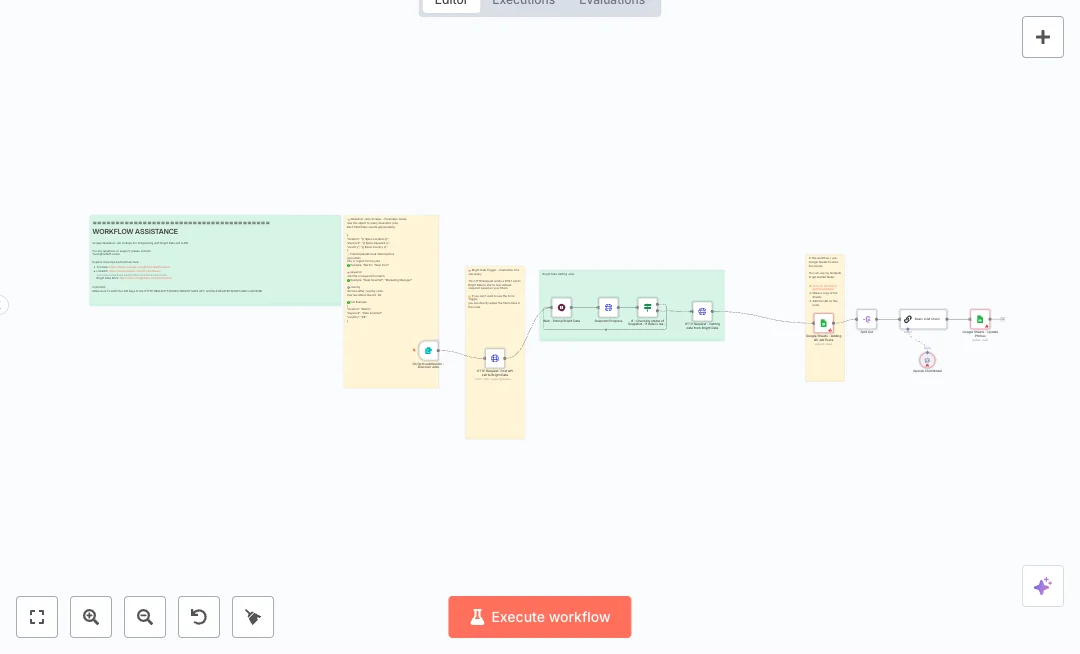
You start the run with a manual trigger. The Google Sheets node reads the linkedin_url column and a filter step skips rows that already have data. A set step encodes each link so it is safe for the API, then an HTTP request calls RapidAPI to pull profile fields. A small code step cleans the response so it fits in a row, and an update action appends or updates the matching sheet record. This avoids duplicate API calls and keeps one source of truth for your profiles.
Set up one Google Sheet with a linkedin_url column, connect your Google account, and add your RapidAPI key and host to the HTTP request headers. Teams often cut research from hours to minutes for 100 profiles, while reducing copy and paste errors. Use it to prep prospect lists, grow a talent pipeline, or enrich research targets. After each run, the sheet stays current for your next action.

Tools Required
What this workflow does?
- Manual trigger lets you control when each batch runs
- Reads linkedin_url values from a Google Sheet to build the input list
- Filter step excludes rows that are already enriched to save API calls
- Set node encodes each LinkedIn URL so the API request is valid
- HTTP Request pulls fresh profile data from RapidAPI with headers and query parameters
- Code node cleans the API response by removing arrays so it fits into sheet columns
- Google Sheets append or update writes results back without creating duplicates
What are the benefits?
- Reduce manual research from 3 hours to 15 minutes for 100 profiles
- Eliminate duplicate enrichment by skipping rows already updated
- Improve data quality by removing copy and paste errors
- Connect Google Sheets and RapidAPI in one consistent flow
- Handle hundreds of profiles per run without extra work
How to set this up?
- Import the template into n8n: Create a new workflow in n8n > Click the three dots menu > Select 'Import from File' > Choose the downloaded JSON file.
- You'll need accounts with Google Sheets and RapidAPI. See the Tools Required section above for links to create accounts with these services.
- In n8n, open the Pull linkedin profiles node and the Update the profile node. In the credential dropdown, click Create new credential and connect your Google account. Name the credential clearly so your team can find it later.
- In each Google Sheets node, select your spreadsheet and the correct sheet tab. Ensure the sheet has a column named linkedin_url with profile links.
- Open the Encode URI set node and confirm it creates a field named Linkedin Profile using the encoded linkedin_url value.
- Subscribe to the Fresh LinkedIn Profile Data API in your RapidAPI account, then copy your x-rapidapi-key and x-rapidapi-host values from the API page.
- Open the Call Rapid API node. In Headers, add x-rapidapi-key and x-rapidapi-host with your values. In Query, confirm linkedin_url is set to the Linkedin Profile field.
- Review the Filter already enriched node and set the condition to skip rows that already have enriched data in your chosen columns.
- Open the Update the profile node and confirm the operation is append or update. Map fields so linkedin_url is used to match and update the correct row.
- Run a test with the manual trigger. Check the Execution data for the API response, then confirm your sheet now shows new profile fields next to each linkedin_url.
- Troubleshoot common issues: 401 means the RapidAPI key or host is wrong, 429 means you hit the rate limit, and missing updates often mean the match column or field mapping needs adjustment. Ensure your Google credential has access to the selected sheet.
Need help or want to customize this?
Ask in the Free Futurise Community.
Similar Templates
These templates were sourced from publicly available materials across the web, including n8n’s official website, YouTube and public GitHub repositories. We have consolidated and categorized them for easy search and filtering, and supplemented them with links to integrations, step-by-step setup instructions, and personalized support in the Futurise community. Content in this library is provided for education, evaluation and internal use. Users are responsible for checking and complying with the license terms with the author of the templates before commercial use or redistribution.Where an original author was identified, attribution has been provided. Some templates did not include author information. If you know who created this template, please let us know so we can add the appropriate credit and reference link. If you are the author and would like this template removed from the library, email us at info@futurise.com and we will remove it promptly.
