Get Started
Screenshot of n8n workflow
FREE TEMPLATE
Automate Google Sheets Contact Updates
3
Views
0
Downloads
6
Nodes
Download Template
Free
Preview Template
Utility Rating
6 / 10
Business Function
Marketing
Automation Orchestrator
n8n
Integrations
Google Sheets
Trigger Type
Manual trigger
Approx setup time ≈ 25 min
Need help setting up this template?
Ask in our free Futurise community
About
Community
Courses
Events
Members
Templates

How to Automate Google Sheets Contact Updates?

Leon Petrou
FREE TEMPLATE
Automate Google Sheets Contact Updates
3
Views
0
Downloads
6
Nodes
Download Template
Free
Preview Template
Utility Rating
6 / 10
Business Function
Marketing
Automation Orchestrator
n8n
Integrations
Google Sheets
Trigger Type
Manual trigger
Approximate setup time ≈ 25 minutes
Need help setting up this template?
Ask in our free Futurise community

Description

Keep your contact list tidy in Google Sheets with one click. The flow collects people data, formats it the right way, and writes it into your sheet without duplicates. It suits marketing teams that need a clean list for emails or ads.

You start it manually in n8n. A data node creates sample customer records. A Set step renames name to Full name, keeps only ID and Email, and adds Created time. The Google Sheets step signs in with OAuth and uses upsert to add new rows or update existing rows by ID, so you do not get repeats. This keeps your sheet structure consistent and easy to use for campaigns.

You only need a Google account and a sheet with matching headers. Expect faster prep and fewer copy paste mistakes. It works well for building a simple contact list, testing data flows, or handing a cleaned list to your sales or email tool. If your sheet has more columns, adjust the range to match your headers so all fields land in the right place.

Copy link

Tools Required

n8n
Sign up
$24 / mo or $20 / mo billed annually to use n8n in the cloud. However, the local or self-hosted n8n Community Edition is free.
Google Sheets
Sign up
Free: $0 (Google Sheets API usage has no additional cost; quota limits apply)

What this workflow does?

  • Manual start so you can run and review results at any time
  • Built in data generator creates sample people records for quick testing
  • Set step renames fields to Full name, keeps only needed fields, and adds Created time
  • Google Sheets upsert writes new rows or updates existing rows based on ID
  • OAuth sign in to Google Sheets for secure and simple access
  • Inline notes explain the field mapping choices for easy learning

What are the benefits?

  • Reduce manual list updates from 60 minutes to 5 minutes per run
  • Cut copy paste errors by up to 90 percent with fixed field mapping
  • Prevent duplicates by matching rows on the ID column
  • Keep Google Sheets ready for campaigns with consistent headers

How to set this up?

  1. Import the template into n8n: Create a new workflow in n8n > Click the three dots menu > Select 'Import from File' > Choose the downloaded JSON file.
  2. You'll need accounts with Google Sheets. See the Tools Required section above for links to create accounts with these services.
  3. Create a Google Sheet with headers in row 1 that match your fields, for example ID, Full name, Email, and Created time. Place them in columns A, B, C, and D.
  4. Open the Google Sheets node. In the Credential field, click Create new credential, choose Google Sheets OAuth2, then follow the on screen steps to sign in with your Google account. Give the credential a clear name like Sheets Main.
  5. In the Google Sheets node, set the Spreadsheet to your target file and confirm the Range covers all columns you need. If you include Created time, use A:D. If the range is A:C, remove the extra field or expand the range.
  6. Double click the Set node. Confirm the fields: ID, Full name, Email, and Created time. Make sure Keep Only Set is turned on so only these fields are sent to Google Sheets.
  7. Open the Customer Datastore node and review the sample output so you know what fields are coming in. This helps you verify the mappings in the Set node.
  8. Click Execute Workflow. After it runs, open your Google Sheet and confirm rows appear under the correct headers. Check that IDs are in column A.
  9. Run it a second time to test upsert. If the same IDs exist, the rows should update, not duplicate. If you see duplicates, confirm the ID header is spelled exactly the same and is in the first column.
  10. Troubleshooting tips: If you get a permission error, reauthorize the Google Sheets credential. If values land in the wrong columns, match your sheet headers to the Set node field names and adjust the Range to cover all columns.

Need help or want to customize this?

Similar Templates

n8n
Marketing
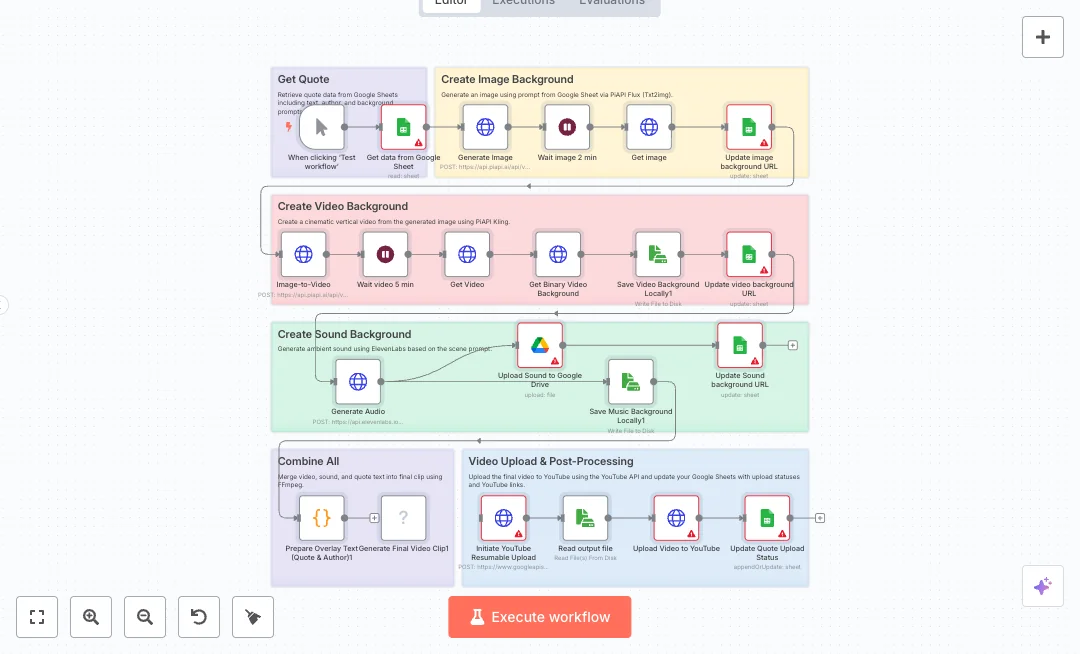
Generate YouTube Shorts from Google Sheets
Create short videos for YouTube by pulling a quote and creative prompts from Google Sheets, building the background image and video with AI, adding ambient sound, and publishing the final clip to your channel. Great for social teams and creators who want steady content without manual editing. A manual start reads one row from Google Sheets with the quote, author, and scene prompts. The flow calls an image model to render a vertical image, waits, then writes the image link back to the sheet. It then sends that image to a video model to produce a cinematic vertical clip, waits again, downloads the file, and records the video link in the sheet. Audio is generated with a voice and sound service, stored to Google Drive, and the drive link is saved. A code node formats overlay text, then FFmpeg merges video, audio, and on screen text into a final MP4. The clip uploads to YouTube with a resumable upload, and the sheet is updated with status and the YouTube link. You will need API keys for the AI services, Google and YouTube OAuth, and FFmpeg installed on the n8n host. Expect one run to replace hours of editing with a repeatable system managed from a spreadsheet. Ideal for daily quotes, quick tips, or listicle shorts driven by your sheet.
13 views
view
n8n
Marketing
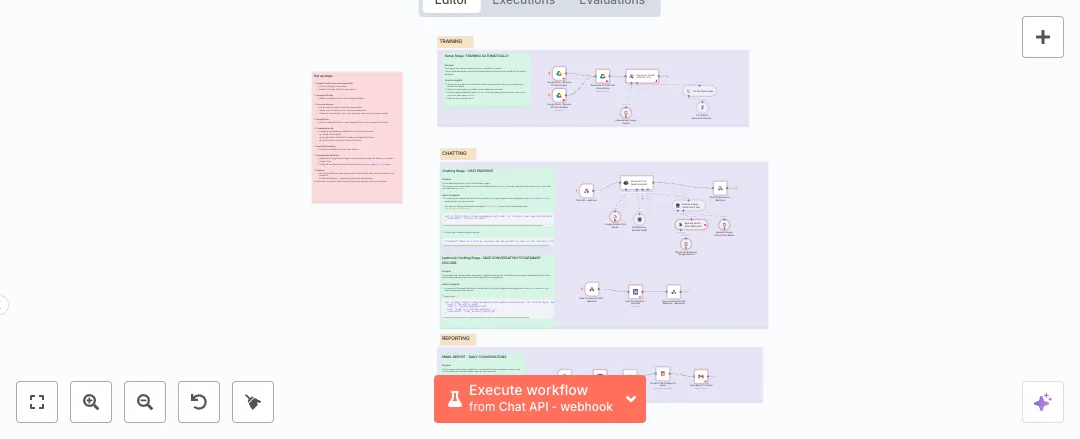
Automate Google Drive Resume Q&A
Turn a resume in Google Drive into a smart chat that answers questions and sends a daily email report. Ideal for personal sites, career pages, or portfolios that want simple Q&A and clear insights without manual updates. When a file is added or changed in a chosen Google Drive folder, the text is split into chunks, embedded with Google Gemini, and stored in Pinecone. A public chat webhook lets visitors ask questions. The agent uses the vector store, a memory buffer, and the Gemini chat model to give grounded answers. A separate webhook can save conversation logs to NocoDB. Each day on schedule, the workflow pulls today’s conversations, groups them by session and email, formats them as HTML, and emails a summary from Gmail. Setup needs Google Drive, Gmail, Pinecone, Google Gemini, and NocoDB credentials in n8n. Expect less manual work, faster updates when the resume changes, and one clear email summary at the end of the day. Use it for personal branding, HR portfolios, or team pages that need quick, accurate answers based on the latest resume content.
60 views
view
n8n
Marketing
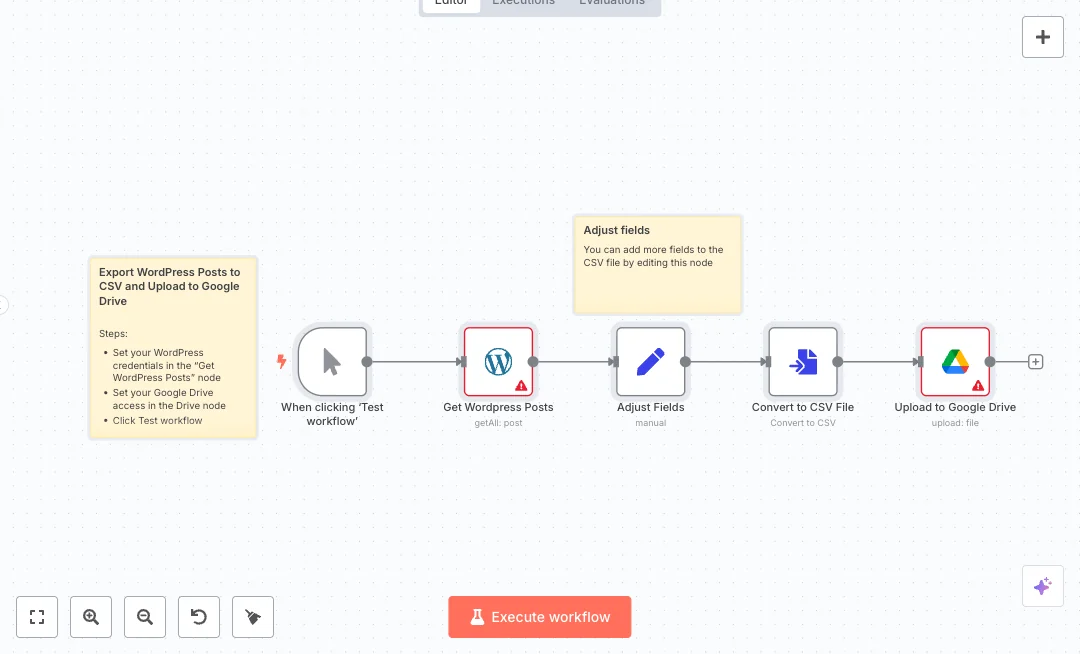
Sync WordPress to Google Drive Content Reports
Content teams often need a fresh list of live posts for reports and audits. This setup pulls all published posts from WordPress and saves a clean CSV file straight to Google Drive. It is ideal for marketers, editors, and agencies that want quick exports without copy and paste. Under the hood, a manual trigger starts the run. The workflow fetches all published posts from WordPress, then uses a field mapping step to keep only the columns you want, like id and title. Next it turns the result into a CSV file and uploads it to your chosen Google Drive folder using a service account. You get a consistent file that is ready for Google Sheets, with only live content included, and the same format every time. You will need WordPress access and a Google Drive account with a service account set up. Connect both in n8n, select the fields you care about in the Adjust Fields step, and click Test to generate your first export. Expect a ready file in minutes and a big cut in manual work. This is great for monthly content reviews, SEO audits, campaign summaries, and client deliverables.
11 views
view
See More Templates

These templates were sourced from publicly available materials across the web, including n8n’s official website, YouTube and public GitHub repositories. We have consolidated and categorized them for easy search and filtering, and supplemented them with links to integrations, step-by-step setup instructions, and personalized support in the Futurise community. Content in this library is provided for education, evaluation and internal use. Users are responsible for checking and complying with the license terms with the author of the templates before commercial use or redistribution.Where an original author was identified, attribution has been provided. Some templates did not include author information. If you know who created this template, please let us know so we can add the appropriate credit and reference link. If you are the author and would like this template removed from the library, email us at info@futurise.com and we will remove it promptly.