


How to Automate Google Sheets Account Enrichment?


Description
Do company research straight from a spreadsheet. The flow reads each row, searches the web with AI, and writes clear results back to Google Sheets. Sales teams use it to enrich accounts without manual copy and paste.
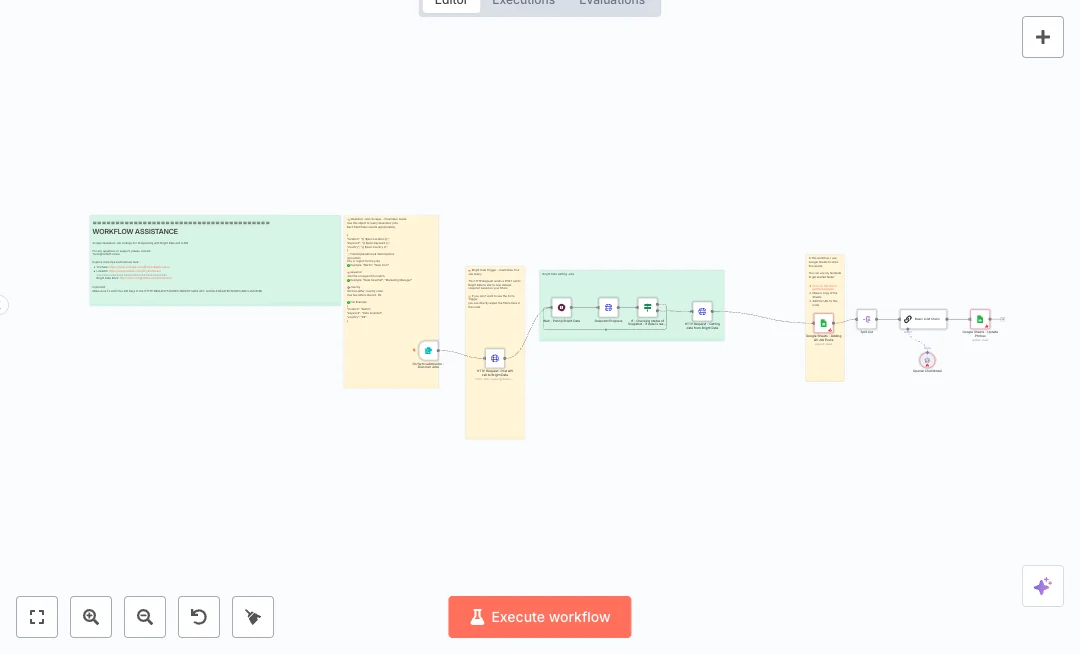
It runs on a schedule or when you click run. The flow pulls rows that need enrichment, then handles them one by one with Split In Batches for control. An AI agent powered by OpenAI uses two tools to gather facts. It searches Google through SerpAPI and visits the website using a sub workflow to extract page text. A Structured Output Parser forces a fixed format for fields like domain, LinkedIn link, pricing, free trial, enterprise plan, API, market, and case study links. The Set and Merge nodes align the AI results with the correct row, and the Google Sheets Update node writes the values back.
Setup needs Google Sheets access plus keys for OpenAI and either SerpAPI or ScrapingBee. Edit the output schema and prompt so field names match your sheet headers. Expect faster research, better consistency, and a traceable record for each account. Great for prospect list enrichment, partner checks, and light competitor scans. Once tested, turn on the schedule to refresh data every two hours.

Tools Required
What this workflow does?
- Manual and schedule triggers to control when the flow runs.
- Google Sheets Get Rows with a filter and Update Row to write back results.
- Split In Batches processes one record at a time for stable runs.
- AI agent powered by OpenAI Chat Model with a low temperature for steady answers.
- SerpAPI tool searches Google while a sub workflow extracts website text for context.
- Structured Output Parser returns a fixed set of fields like domain, LinkedIn URL, pricing, trial, enterprise plan, API and market.
- Merge by position combines AI output with the original row so updates target the right record.
- Optional ScrapingBee search tool as a cost efficient alternative to SerpAPI.
- Configurable prompts and schema so teams can capture different fields without code.
What are the benefits?
- Reduce manual research from 30 minutes to 3 minutes per account
- Automate about 80 percent of repetitive lookups
- Improve data consistency by enforcing one schema for every row
- Process hundreds of records per hour with batch control
- Connect Google Sheets, OpenAI and search tools in one pipeline
- Run on a timer every two hours or start it on demand
- Store final results where your team already works
How to set this up?
- Import the template into n8n: Create a new workflow in n8n > Click the three dots menu > Select 'Import from File' > Choose the downloaded JSON file.
- You'll need accounts with Google Sheets, OpenAI, SerpAPI and ScrapingBee. See the Tools Required section above for links to create accounts with these services.
- In the n8n credentials manager, create a Google Sheets OAuth credential. Double click the Google Sheets nodes, choose Credential to connect with, click Create new credential, then sign in to your Google account and allow access to the target sheet.
- Open the Get rows to enrich node and select your Spreadsheet and Sheet. Make sure the column enrichment_status exists so the filter works. Return a few rows first to validate access.
- Open the Google Sheets Update Row node and select the same Spreadsheet and Sheet. Map each field to your column names such as domain, market, linkedinUrl and row_number. Save and test the mapping with a sample row.
- Create an OpenAI API Key in your OpenAI account. In n8n, open the OpenAI Chat Model node, select Credential to connect with, choose Create new credential, paste the key, and set the model to gpt 4o with temperature 0.3.
- Choose your search provider. For SerpAPI, create an API key in your SerpAPI dashboard, then open the SerpAPI Search node, create a new credential, and paste the key. If you prefer ScrapingBee, open that node and add your API key there, then connect it to the agent and disable the SerpAPI node.
- Review the Structured Output Parser node. Adjust the schema so it matches the fields you need and the headers in your sheet. Update the AI prompt in the agent so the model knows exactly what to extract.
- Check Split In Batches is set to batch size 1 for safe updates. Confirm the Merge node is set to merge by position so the correct row is updated.
- Open the Schedule Trigger and set the frequency, for example every two hours. You can also run manually for quick tests.
- Click Test workflow. Watch the execution to confirm one or two rows are read, the agent returns data, and the Update Row node writes the fields back. Verify values in your sheet.
- Troubleshoot common issues. If you see a permissions error in Sheets, share the document with the connected Google account. If SerpAPI returns rate limit errors, slow the schedule or add delays. If the parser returns null fields, refine the prompt or schema. If rows update in the wrong place, confirm row_number mapping.
Need help or want to customize this?
Ask in the Futurise Pro Community.
Similar Templates
These templates were sourced from publicly available materials across the web, including n8n’s official website, YouTube and public GitHub repositories. We have consolidated and categorized them for easy search and filtering, and supplemented them with links to integrations, step-by-step setup instructions, and personalized support in the Futurise community. Content in this library is provided for education, evaluation and internal use. Users are responsible for checking and complying with the license terms with the author of the templates before commercial use or redistribution.Where an original author was identified, attribution has been provided. Some templates did not include author information. If you know who created this template, please let us know so we can add the appropriate credit and reference link. If you are the author and would like this template removed from the library, email us at info@futurise.com and we will remove it promptly.
