


How to Automate Gmail Support Replies?


Description
Turn incoming emails into fast, accurate replies with a built in knowledge base and a simple approval step. Ideal for support teams and account managers who need short, correct responses without losing control.
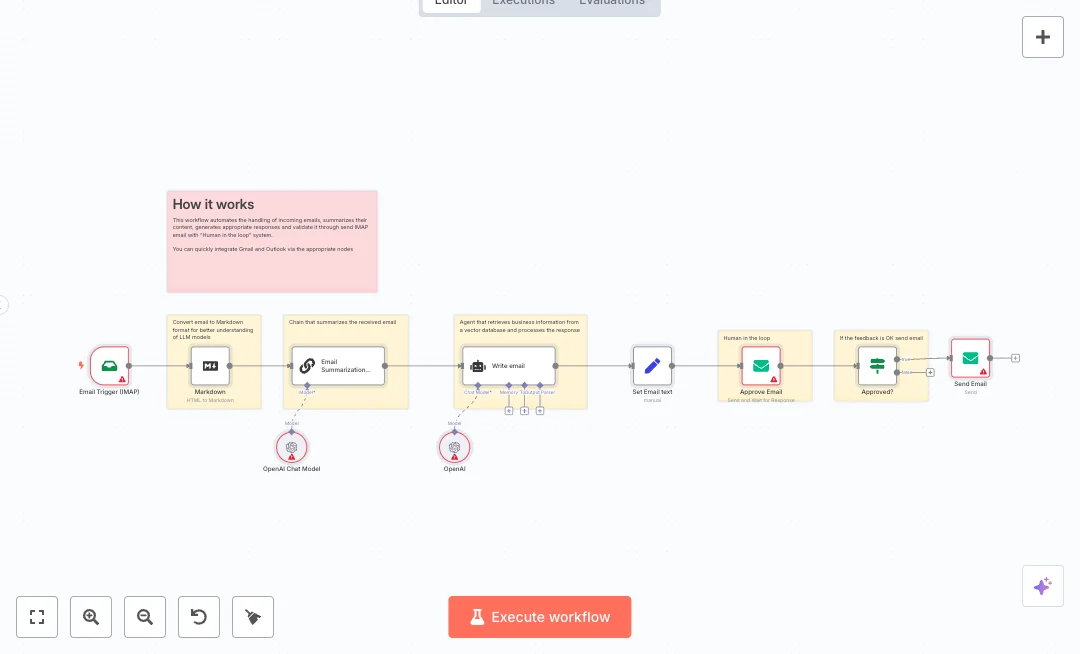
New emails arrive through IMAP and are converted to clean Markdown. A summary is created so the model focuses on what matters. Company files from Google Drive are indexed into Qdrant, and an OpenAI agent uses that knowledge to write a reply under 100 words. A Gmail step sends the draft to a reviewer and waits for free text feedback. A classifier decides if the draft is approved. If not, a reviewer agent rewrites the message using the feedback. The final email is sent by SMTP to the original sender.
Setup is simple once the tools are connected. You set the Qdrant URL and collection name, pick the Google Drive folder, and run the manual path to build the vector index. Then you enable the IMAP trigger for live use. Expect faster replies, fewer mistakes, and a steady tone across messages. This fits customer support, pre sales, and simple account care.

Tools Required
What this workflow does?
- IMAP email trigger captures new messages as they arrive
- Markdown conversion cleans HTML so the model reads content clearly
- Summarization step creates a short brief for faster and focused drafting
- Google Drive files are loaded, split into chunks, and embedded to Qdrant
- Qdrant retrieval is used as a tool inside the OpenAI agent for RAG
- OpenAI writes a concise reply under 100 words with a business tone
- Gmail send and wait collects human feedback in free text form
- Text classifier detects approval or requests for changes
- Reviewer agent rewrites the draft based on the received feedback
- SMTP send returns the final reply to the original sender with the right subject
What are the benefits?
- Reduce drafting time from 10 minutes to 1 minute
- Automate up to 70 percent of reply writing while keeping human approval
- Improve answer accuracy by using company files stored in Qdrant
- Handle up to 3 times more email volume with the same team
- Connect Gmail, Google Drive, OpenAI, and Qdrant in one flow
- Cut context switching by reviewing and approving inside email
How to set this up?
- Import the template into n8n: Create a new workflow in n8n > Click the three dots menu > Select 'Import from File' > Choose the downloaded JSON file.
- You'll need accounts with Gmail, IMAP, SMTP, Google Drive, OpenAI, Qdrant and DeepSeek. See the Tools Required section above for links to create accounts with these services.
- In the n8n credentials manager, create IMAP credentials for the inbox you want to watch. Double click the Email Trigger node and in the Credential to connect with field click Create new credential, then follow the on screen steps.
- Create SMTP credentials for the sender mailbox used to send final replies. Open the Send Email node and create a new SMTP credential, then test the connection.
- Connect Gmail with OAuth2. Open the Gmail node, choose Create new credential, sign in to the reviewer Gmail account, and grant send and read permissions for send and wait.
- Connect Google Drive with OAuth2. Open the Google Drive nodes, create a new credential, and choose the folder that holds your company documents for the knowledge base.
- Set up OpenAI and DeepSeek API keys. For each node using these models, create a new credential and paste the API key from the vendor API page. Name credentials clearly, for example OpenAI Prod and DeepSeek Prod.
- Set up Qdrant access. In the Qdrant nodes and HTTP Request nodes, create a new Qdrant API credential and paste the API key and base URL. In the HTTP nodes, replace QDRANTURL and set the COLLECTION name.
- Build the knowledge base. Run the manual path that creates or refreshes the collection, downloads files from Google Drive, loads and splits text, and writes embeddings to Qdrant. Confirm the collection exists in your Qdrant dashboard.
- Review model settings. In the OpenAI node ensure the model is set to gpt 4o mini or your preferred model. In the agent nodes keep the system messages and word limits as provided, or adjust to your tone.
- Test end to end. Send a test email to the IMAP inbox. Check that a summary is created, a draft is written, Gmail sends an approval message, feedback returns, and the final email is sent by SMTP with the Re subject.
- Troubleshoot common issues. If Gmail approval does not arrive, verify Gmail OAuth scopes and that send and wait is enabled. If Qdrant fails, confirm the base URL, API key, and collection name. If no documents load, check Google Drive permissions. If sending fails, verify SMTP host, port, and from address.
Need help or want to customize this?
Ask in the Futurise Pro Community.
Similar Templates
These templates were sourced from publicly available materials across the web, including n8n’s official website, YouTube and public GitHub repositories. We have consolidated and categorized them for easy search and filtering, and supplemented them with links to integrations, step-by-step setup instructions, and personalized support in the Futurise community. Content in this library is provided for education, evaluation and internal use. Users are responsible for checking and complying with the license terms with the author of the templates before commercial use or redistribution.Where an original author was identified, attribution has been provided. Some templates did not include author information. If you know who created this template, please let us know so we can add the appropriate credit and reference link. If you are the author and would like this template removed from the library, email us at info@futurise.com and we will remove it promptly.
