


How to Automate Gmail Sales Meeting Prep?


Description
Start each day with a clear brief for every company you will meet. The system sends one email per company with fresh social activity so sales calls feel informed and warm. It fits teams that want quick prep without manual research.
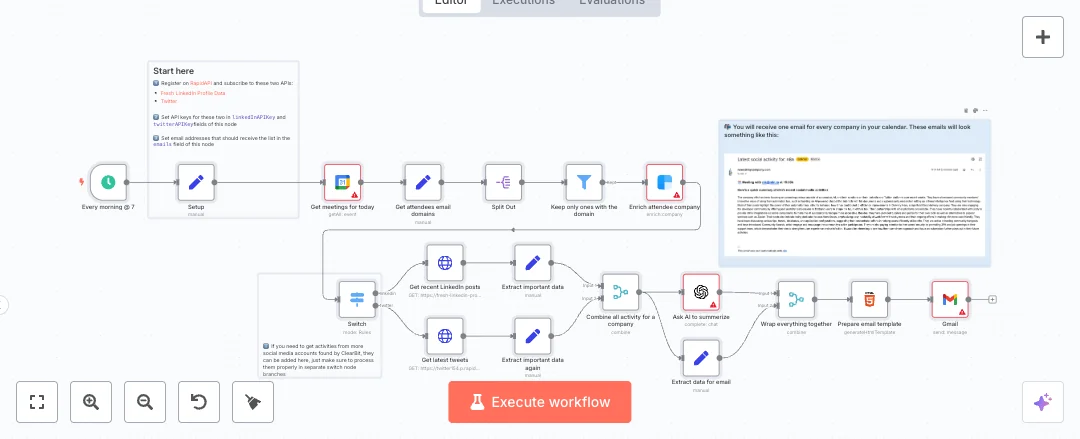
At 7 am the flow checks your Google Calendar for today’s meetings. It pulls attendee email domains, skips the organizer, and uses Clearbit to find the company name and social handles. A switch then calls two data sources on RapidAPI to fetch recent LinkedIn posts and recent tweets. Code steps turn that content into clean HTML, a merge step brings all posts together, and a template wraps it into a short report. Gmail sends the message to the recipients you set.
You need keys for the two RapidAPI APIs and a Clearbit key, plus connected Gmail and Google Calendar accounts in n8n. Add the recipient list in the Setup node. Expect faster prep and better context for calls with prospects and customers. It helps account executives, SDRs, and customer success teams who run many meetings and want relevant talking points.

Tools Required
What this workflow does?
- Daily schedule at 7 am so briefs arrive before your workday starts
- Pulls all of today’s meetings from Google Calendar and skips the organizer
- Extracts attendee email domains and splits them so each company is processed
- Enriches company data with Clearbit using the domain to find name and social handles
- Routes to LinkedIn and Twitter fetch steps only when handles or IDs exist
- Calls RapidAPI endpoints for recent LinkedIn posts and recent tweets
- Formats social content into clean HTML blocks with simple code steps
- Combines posts from both networks into one company activity feed
- Builds a styled email report and sends it through Gmail to your chosen list
What are the benefits?
- Reduce manual research from 30 minutes to 5 minutes per meeting
- Automate about 80 percent of pre call prep by gathering posts and company info
- Improve data freshness by pulling recent LinkedIn and Twitter activity daily
- Handle many meetings per day without extra effort or extra staff
- Connect Google Calendar, Clearbit, LinkedIn data, Twitter data, and Gmail in one flow
How to set this up?
- Import the template into n8n: Create a new workflow in n8n > Click the three dots menu > Select 'Import from File' > Choose the downloaded JSON file.
- You'll need accounts with Google Calendar, Gmail, Clearbit, RapidAPI Fresh LinkedIn Profile Data and RapidAPI Twitter154. See the Tools Required section above for links to create accounts with these services.
- In the n8n credentials manager, connect Google Calendar: open the Google Calendar node, choose Credential to connect with, click Create new credential, then follow the on screen steps to authorize your Google account.
- Connect Gmail in the Gmail node: choose Credential to connect with, click Create new credential, and approve access so n8n can send emails from your account.
- Set up Clearbit: create or locate your API key in your Clearbit dashboard, then in the Clearbit node click Create new credential, select API Key, paste the key, and save.
- Create a RapidAPI account and subscribe to the Fresh LinkedIn Profile Data and Twitter154 APIs. Copy the RapidAPI key from your account.
- Open the Setup node and paste your RapidAPI key values into linkedInAPIKey and twitterAPIKey. Add the recipient addresses in the emails field.
- Open the Google Calendar node and select the calendar that holds your sales meetings. Keep timeMin and timeMax set to today as provided.
- Review the Switch node conditions. Confirm the fields from Clearbit match linkedin.handle and twitter.id. If your Clearbit plan returns different paths, adjust the conditions to match.
- Run a test: pick a day with real meetings that include external attendees, click Execute workflow, and confirm you receive one email per company with recent posts.
- If no email arrives, check that attendee emails include domains, verify Clearbit returned company data, confirm RapidAPI quotas are active, and review the n8n execution logs for any errors.
- Enable the schedule trigger for daily use. Verify your timezone in n8n so messages arrive at 7 am local time.
Need help or want to customize this?
Ask in the Free Futurise Community.
Similar Templates
These templates were sourced from publicly available materials across the web, including n8n’s official website, YouTube and public GitHub repositories. We have consolidated and categorized them for easy search and filtering, and supplemented them with links to integrations, step-by-step setup instructions, and personalized support in the Futurise community. Content in this library is provided for education, evaluation and internal use. Users are responsible for checking and complying with the license terms with the author of the templates before commercial use or redistribution.Where an original author was identified, attribution has been provided. Some templates did not include author information. If you know who created this template, please let us know so we can add the appropriate credit and reference link. If you are the author and would like this template removed from the library, email us at info@futurise.com and we will remove it promptly.
