


How to Automate Gmail Inbox Organization?


Description
Keep your inbox tidy without manual sorting. This setup scans new Gmail messages and puts them into the right labels using AI. It helps teams that get many emails and want quick triage and clear folders.
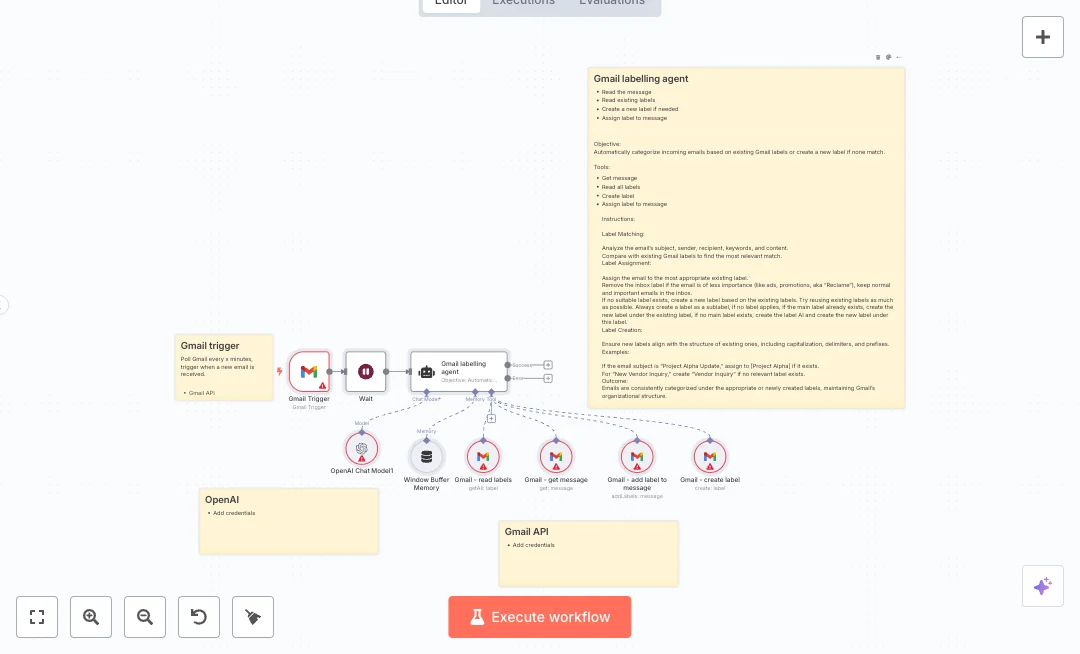
A Gmail trigger checks for new mail every five minutes. A short wait controls timing. The agent uses an OpenAI chat model with memory to review the message, compare it with your existing Gmail labels, and choose the best match. If nothing fits, it creates a new label and then applies it to the email. It reads all labels, fetches the message by id, creates labels when needed, and adds labels back to Gmail. Results are consistent because the memory keeps short context for each thread.
You only need Gmail access and an OpenAI key. Connect both credentials in n8n Cloud, keep the default poll time, and test by sending a sample email with a clear subject. Expect faster inbox cleanup, fewer missed messages, and a clear label structure for shared mailboxes. Many teams use it for marketing leads, vendor requests, or project updates. Time saved adds up fast, and you can handle more email volume without extra staff.

Tools Required
What this workflow does?
- Gmail trigger polls every five minutes to catch new emails quickly
- Wait node manages timing to keep requests smooth
- OpenAI chat model analyzes subject, sender, keywords, and body text
- Read all Gmail labels for accurate matching against your current structure
- Fetch the full email by message id for precise context
- Create a new Gmail label when no label matches
- Add the chosen label to the message to organize your inbox instantly
- Window buffer memory keeps short context per thread for steady choices
What are the benefits?
- Reduce manual sorting from 60 minutes per day to under 5 minutes
- Automate up to 80 percent of routine email filing
- Cut misfiled emails by 70 percent through consistent labels
- Handle five times more email volume with the same team
- Connect Gmail and OpenAI without manual copy and paste
How to set this up?
- Import the template into n8n: Create a new workflow in n8n > Click the three dots menu > Select 'Import from File' > Choose the downloaded JSON file.
- You will need accounts with Gmail and OpenAI. See the Tools Required section above for links to create accounts with these services.
- In n8n Cloud, open the Gmail Trigger node. In the credential dropdown, click Create new credential, pick Gmail OAuth2, sign in to your Google account, and allow the requested permissions.
- Open each Gmail tool node Read labels, Get message, Add label to message, and Create label. In each node, choose the same Gmail credential you created to avoid authentication errors.
- Open the OpenAI Chat Model node. In the credential dropdown, click Create new credential, paste your OpenAI API key from the OpenAI account API page, and save.
- Check the Gmail Trigger poll time. It is set to every five minutes. Adjust the value if your team needs faster or slower checks.
- Review the agent system message in the Gmail labelling agent node. If needed, edit the instructions to reflect your label naming rules and priorities.
- Click Save and then Activate. Send two test emails to your Gmail account with clear subjects that map to known topics.
- Open Executions in n8n. Inspect the latest run and confirm that Read labels returned your label list and Get message pulled the right email.
- Check that Create label only ran when nothing matched, and that Add label to message succeeded with the label id returned by the agent.
- In Gmail, refresh your labels and verify the test emails now show the correct labels. If labels do not appear, recheck Gmail OAuth permissions. If the OpenAI step fails, confirm your API key and model access. If too many new labels appear, refine the agent instructions to favor existing labels.
Need help or want to customize this?
Ask in the Free Futurise Community.
Similar Templates
These templates were sourced from publicly available materials across the web, including n8n’s official website, YouTube and public GitHub repositories. We have consolidated and categorized them for easy search and filtering, and supplemented them with links to integrations, step-by-step setup instructions, and personalized support in the Futurise community. Content in this library is provided for education, evaluation and internal use. Users are responsible for checking and complying with the license terms with the author of the templates before commercial use or redistribution.Where an original author was identified, attribution has been provided. Some templates did not include author information. If you know who created this template, please let us know so we can add the appropriate credit and reference link. If you are the author and would like this template removed from the library, email us at info@futurise.com and we will remove it promptly.
