Get Started
Screenshot of n8n workflow
FREE TEMPLATE
Automate Gmail HubSpot Lead Outreach
11
Views
0
Downloads
8
Nodes
Download Template
Free
Preview Template
Utility Rating
7 / 10
Business Function
Sales
Automation Orchestrator
n8n
Integrations
HubSpot
Gmail
Trigger Type
Schedule
Approx setup time ≈ 35 min
Need help setting up this template?
Ask in our free Futurise community
About
Community
Courses
Events
Members
Templates

How to Automate Gmail HubSpot Lead Outreach?

Leon Petrou
FREE TEMPLATE
Automate Gmail HubSpot Lead Outreach
11
Views
0
Downloads
8
Nodes
Download Template
Free
Preview Template
Utility Rating
7 / 10
Business Function
Sales
Automation Orchestrator
n8n
Integrations
HubSpot
Gmail
Trigger Type
Schedule
Approximate setup time ≈ 35 minutes
Need help setting up this template?
Ask in our free Futurise community

Description

Reach new CRM contacts without lifting a finger. Every morning, the system finds people in HubSpot who have never been contacted and sends a simple Gmail message. It also logs the outreach so the team can see who was touched and when.

At 9 am on a set schedule, the flow searches HubSpot for contacts that do not have a last contact date. A Set step builds a short email with the first name and subject, then Gmail sends it to the contact email. At the same time, an email engagement is saved in HubSpot and linked to the contact record. This keeps records clean and stops repeat email touches to the same person.

You will need Gmail and HubSpot accounts and OAuth credentials in n8n Cloud. Expect faster first touch, fewer missed leads, and a clear timeline in HubSpot. Good fits include SDR teams, small agencies, and founders who want a light daily touch without running a heavy sequence tool. Make sure your HubSpot scopes allow engagement read and write, and confirm the last contact property is set so contacts are not picked twice.

Copy link

Tools Required

n8n
Sign up
$24 / mo or $20 / mo billed annually to use n8n in the cloud. However, the local or self-hosted n8n Community Edition is free.
HubSpot
Sign up
Free: $0 / mo; API access included (private app or OAuth). Limits on Free: 250,000 API calls/day and 100 requests per 10 seconds per private app.
Gmail
Sign up
No cost: Personal Gmail (Gmail API has no usage-based pricing; quotas apply)

What this workflow does?

  • Daily schedule at 9 am runs without manual work.
  • HubSpot search targets contacts missing the last contact date.
  • Personalized email content built with contact first name and subject.
  • Gmail sends the message using your chosen sender name.
  • Engagement is recorded in HubSpot and linked to the contact record.
  • Parallel steps send and log the outreach in one run.
  • OAuth2 credentials for HubSpot and Gmail managed in n8n Cloud.
  • Simple field mapping for to, subject, and html body.

What are the benefits?

  • Reduce daily prospecting from 60 minutes to 5 minutes
  • Automate 100 percent of first touch emails to new leads
  • Improve CRM accuracy by 90 percent by logging every email
  • Connect Gmail and HubSpot so data stays in one place
  • Handle 5 times more new leads without extra work

How to set this up?

  1. Import the template into n8n: Create a new workflow in n8n > Click the three dots menu > Select 'Import from File' > Choose the downloaded JSON file.
  2. You'll need accounts with Gmail and HubSpot. See the Tools Required section above for links to create accounts with these services.
  3. In the n8n credentials manager, double click the HubSpot nodes and on the Credential to connect with menu choose Create new credential. Follow the on screen steps for OAuth2 and name it HubSpot CRM Prod.
  4. Open the HubSpot search node and confirm the filter targets contacts that do not have a last contact date. If your portal uses a different property for last contact, update the filter to match your property name.
  5. Double click the Gmail node and create a new OAuth2 credential. Sign in with the sending account, approve access, and name it Gmail Outreach Prod. Set the sender name and choose the mailbox if you use an alias.
  6. Edit the Set node to adjust the email subject and body. Use the contact first name and email fields from HubSpot so the message is personal. Keep the to field mapped to the contact email.
  7. Create a test contact in HubSpot with your own email address. Run the workflow once manually and confirm you receive the email.
  8. In HubSpot, open the test contact and check the timeline for a new email engagement. Confirm the last contact date is now populated so the contact will not be picked again.
  9. Open the Schedule Trigger node and ensure the time matches your timezone. Turn the workflow on so it runs every morning.
  10. If no contacts are found, check HubSpot scopes and property names. If Gmail fails to send, review account send limits and reauthenticate the credential. If the engagement is not linked, confirm the contact id from the search step is passed into the engagement step.

Need help or want to customize this?

Similar Templates

n8n
Sales
Automate HubSpot to Gmail Sales Outreach
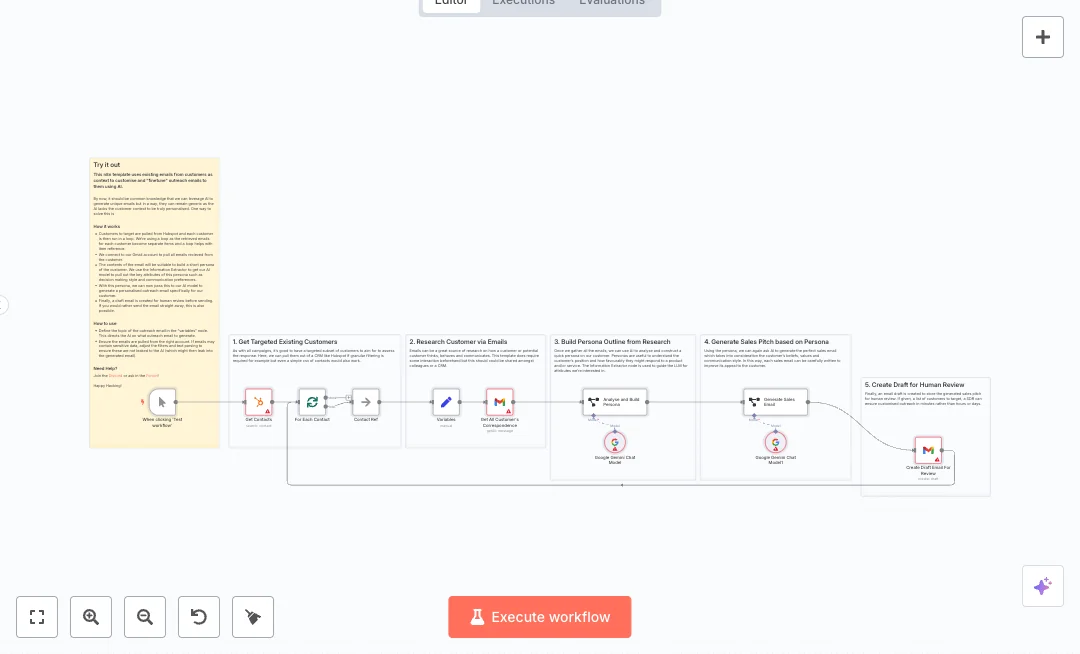
Create personal sales emails at scale without guesswork. The flow pulls contacts from your CRM, studies past emails in Gmail, builds a quick persona, and writes a tailored draft for each person. Great for sales teams that want faster outreach with real context. It runs on demand and reads a target list from HubSpot. Each contact moves through a loop where the Variables step maps name, email, and the product you want to sell. Gmail pulls recent messages from that contact. An AI step using Google Gemini extracts traits like tone, decision style, and interests. A second AI step turns that persona into a subject line and HTML body. The email is saved as a Gmail draft so a rep can review and send. You will need HubSpot, Gmail, and a Google Gemini API key. Set your product in the Variables node and refine the Gmail search so only useful messages are used. Teams often cut drafting time from 30 minutes per contact to 2 minutes and can process hundreds of contacts in one run. Use it for account based outreach, reactivation, and upsell follow ups.
14 views
view
n8n
Sales
Automate Gmail and Google Calendar Sales Prep
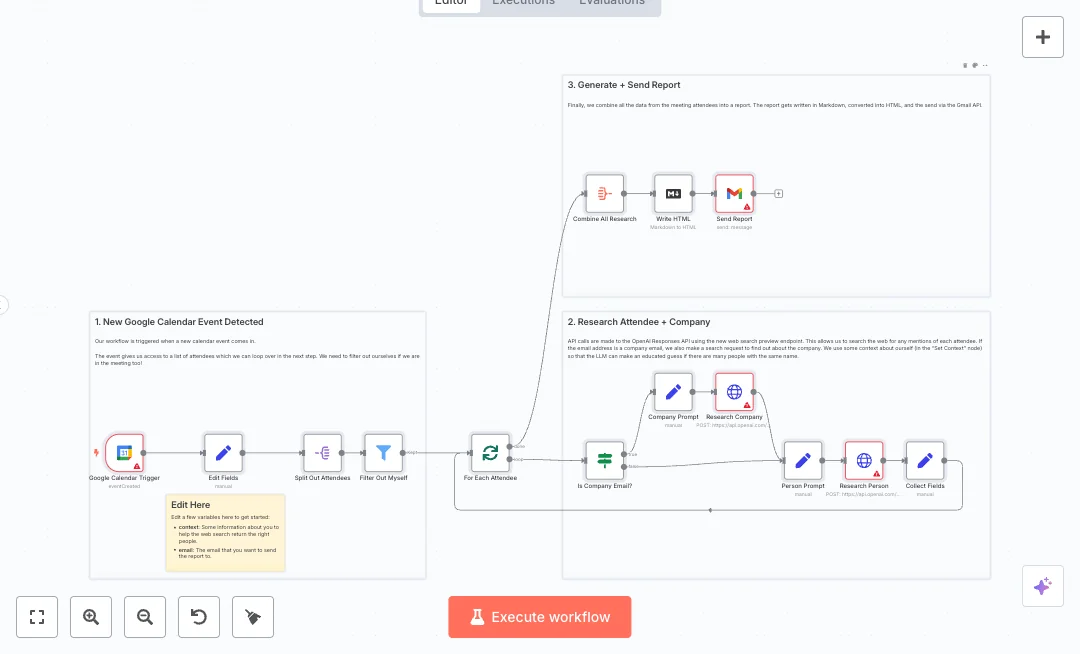
Get ready for every meeting without digging through the web. When a new Google Calendar event is created, the system gathers the attendee list, researches each person, and emails a clean brief to your inbox. It is ideal for sales calls, partner meetings, and discovery sessions. Here is how it works. A Google Calendar trigger watches for new events every minute and pulls the attendees. Your own email is removed. The flow splits the attendee list and loops through each person. It checks if the email looks like a company domain. For every person, it sends a request to the OpenAI Responses API using web search to find recent and relevant info. If the domain is a company, it also runs a separate company search. The results are merged, written in Markdown, converted to HTML, and sent with Gmail. Setup is simple. Add your context and the report destination email in the Edit Fields node. Connect Google Calendar, Gmail, and OpenAI credentials. Expect meeting prep time to drop from 30 minutes to about 3 minutes per event. Great for teams that need fast research for multi attendee meetings, like sales, recruiting, or business development.
15 views
view
n8n
Sales
Automate Gmail Meeting Research
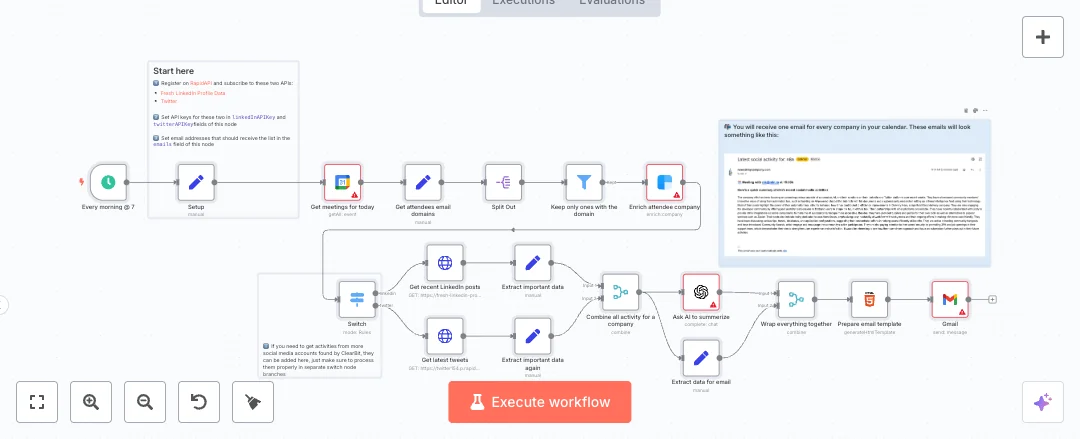
Start each day with a clear briefing for every company on your calendar. The system gathers recent social posts and key company details, then sends a simple email you can scan before each call. It is ideal for sales reps, founders, and account managers who want fast context without manual research. At 7 AM a schedule runs. It reads Google Calendar events, pulls attendee email domains, and enriches the company with Clearbit to find social handles. Two branches collect new LinkedIn posts and recent tweets through RapidAPI endpoints. The flow merges all activity by company, asks OpenAI to write a short summary, builds a clean HTML email, and sends it through Gmail to the recipients you set. You receive one message per company, with links and notes you can use on the call. To run it, you need Google Calendar and Gmail access, Clearbit and OpenAI API keys, and RapidAPI keys for the LinkedIn and Twitter endpoints. Most teams cut research time from 30 minutes to about 2 minutes per meeting and show up more prepared. Great for weekly pipelines, first calls, and executive briefings. Follow the steps below to connect accounts, paste API keys, test with a sample event, and then turn the schedule on.
9 views
view
See More Templates

Credits: Mutasem from n8n - these templates were sourced from publicly available materials across the web, including n8n’s official website, YouTube and public GitHub repositories. We have consolidated and categorized them for easy search and filtering, and supplemented them with links to integrations, step-by-step setup instructions, and personalized support in the Futurise community. Content in this library is provided for education, evaluation and internal use. Users are responsible for checking and complying with the license terms with the author of the templates before commercial use or redistribution. If you are the author and would like this template removed from the template library, email us at info@futurise.com and we will remove it promptly.