Get Started
Screenshot of n8n workflow
PRO TEMPLATE
Automate Gmail and Outlook Reply Approval
1
Views
0
Downloads
16
Nodes
Download Template
Pro required
Preview Template
Utility Rating
8 / 10
Business Function
Customer Support
Automation Orchestrator
n8n
Integrations
OpenAI
Microsoft Outlook
Gmail
DeepSeek
Trigger Type
On app event
Approx setup time ≈ 55 min
Need help setting up this template?
Ask in our Futurise Pro community
About
Community
Courses
Events
Members
Templates

How to Automate Gmail and Outlook Reply Approval?

Leon Petrou
PRO TEMPLATE
Automate Gmail and Outlook Reply Approval
1
Views
0
Downloads
16
Nodes
Download Template
Pro required
Preview Template
Utility Rating
8 / 10
Business Function
Customer Support
Automation Orchestrator
n8n
Integrations
OpenAI
Microsoft Outlook
Gmail
DeepSeek
Trigger Type
On app event
Approximate setup time ≈ 55 minutes
Need help setting up this template?
Ask in our Futurise Pro community

Description

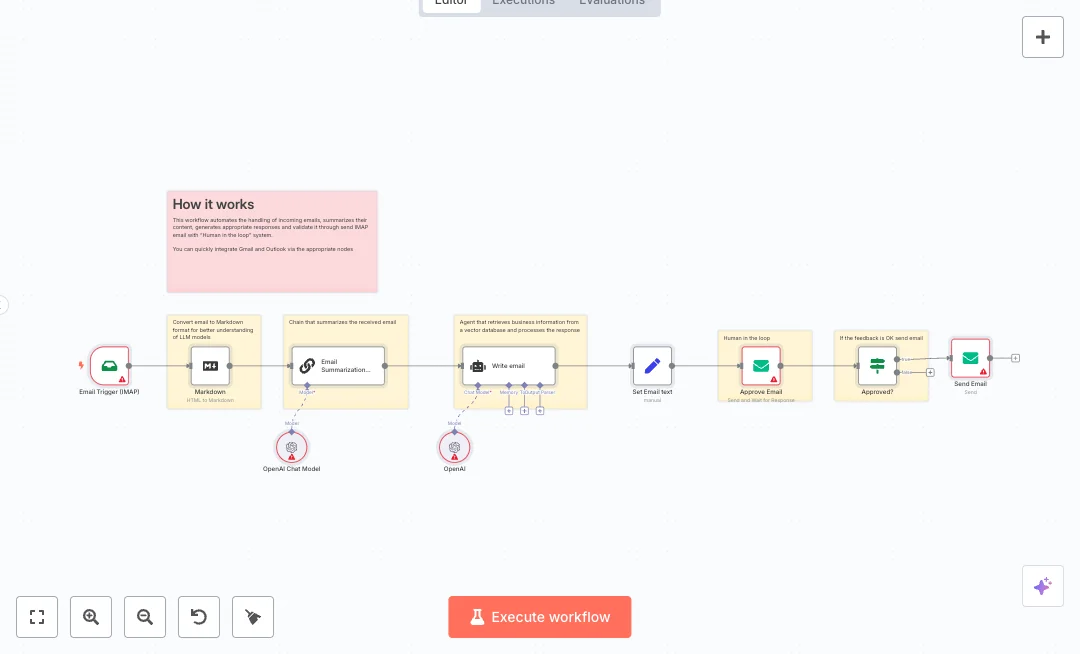
Handle a busy inbox with faster, safer replies. Incoming emails are read, summarized, and a short response is drafted. A human review step approves the message before it goes out.

The flow watches your mailbox with IMAP. Email HTML is converted to Markdown so language models read it clearly. A DeepSeek model creates a brief summary. An OpenAI model writes a professional reply under 100 words, using company facts pulled by an agent from your vector database. The draft is emailed to a reviewer with the original message and the AI reply shown together. If approved, the system sends the reply back to the original sender using the same subject and addresses.

You only need a Gmail or Outlook inbox and API keys for OpenAI and DeepSeek. Set the approver email and adjust the prompts to match your tone. Teams use this for support tickets, sales leads, and partner questions. Expect response time to drop from 20 minutes to 2 minutes per email while keeping full human control over what gets sent.

Copy link

Tools Required

OpenAI
Sign up
Pay-as-you-go: GPT-5 at $1.25 per 1M input tokens and $10 per 1M output tokens
n8n
Sign up
$24 / mo or $20 / mo billed annually to use n8n in the cloud. However, the local or self-hosted n8n Community Edition is free.
Microsoft Outlook
Sign up
Exchange Online (Plan 1): $4.00 user / mo (annual billing)
Gmail
Sign up
No cost: Personal Gmail (Gmail API has no usage-based pricing; quotas apply)
DeepSeek
Sign up
$0.035/1M input tokens (cache hit), $0.135/1M input tokens (cache miss), $0.550/1M output tokens

What this workflow does?

  • IMAP email watcher pulls new messages from your inbox
  • Markdown node converts HTML emails to clean text for better model input
  • DeepSeek chat model summarizes each email in about 100 words
  • OpenAI model drafts a short professional reply under 100 words
  • Agent step can look up business details from your vector database for accurate answers
  • Approve Email step emails the draft to a reviewer and waits for a decision
  • If node routes only approved drafts to send and stops the rest
  • SMTP sending uses the original subject and addresses for correct threading
  • Set node maps AI output into the final email body

What are the benefits?

  • Reduce manual reply work from 20 minutes to 2 minutes per email
  • Automate about 70 percent of routine responses with a human approval step
  • Lower errors by showing the original message and the AI draft side by side
  • Handle up to 5 times more inbound emails without adding staff
  • Connect Gmail or Outlook with OpenAI and DeepSeek in one flow

How to set this up?

  1. Import the template into n8n: Create a new workflow in n8n > Click the three dots menu > Select 'Import from File' > Choose the downloaded JSON file.
  2. You'll need accounts with Gmail, Microsoft Outlook, OpenAI and DeepSeek. See the Tools Required section above for links to create accounts with these services.
  3. In the n8n credentials manager, create an IMAP credential for your mailbox. If using Gmail, create an app password and enable IMAP. If using Outlook, use your Microsoft 365 IMAP settings. Double click the Email Trigger node, choose your credential, and test the connection.
  4. Create an SMTP credential for sending. Double click the Send Email and Approve Email nodes, select the SMTP credential, and send a test message to confirm delivery.
  5. Open the OpenAI node, click Create new credential, paste your OpenAI API key from the official API page, and select the gpt 4o mini model.
  6. Open the OpenAI Chat Model node, create a credential for DeepSeek, add your API key from the DeepSeek account page, and select the deepseek chat model.
  7. In the Email Trigger node, set the inbox folder and make sure it reads only unread emails to avoid duplicates.
  8. In the Approve Email node, set the reviewer address for approvals. Confirm the message shows both the original email and the AI draft.
  9. Open the Write email node and adjust the system message and word limit to match your brand tone and compliance needs.
  10. Run a test: send a sample email to your inbox, confirm the workflow creates a summary and draft, check the approval email, approve it, and verify the reply is sent to the original sender.
  11. Troubleshoot: if nothing triggers, check IMAP settings and app passwords. If approvals do not resume the flow, make sure the workflow is active and that the approval email is not in spam. Review the Executions list for errors.

Need help or want to customize this?

Similar Templates

n8n
Customer Support
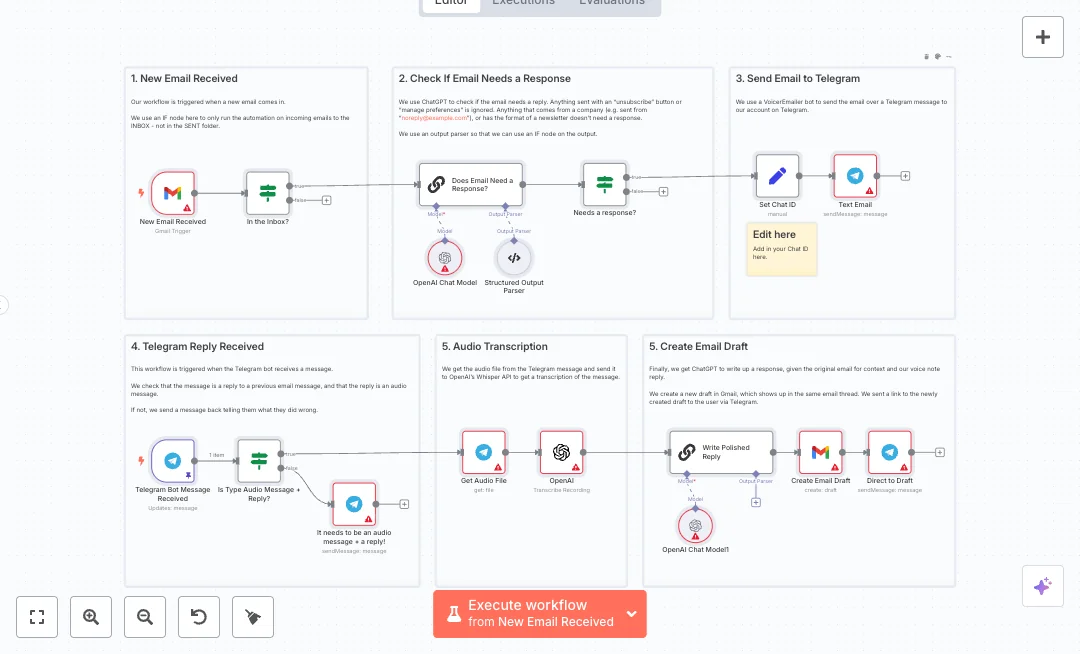
Automate Gmail Reply Drafting via Telegram
Turn new Gmail messages into fast reply drafts using a quick voice note on Telegram. Great for customer support and busy teams that need to clear the inbox while on the move. You speak the response, and a clean draft appears in Gmail. Here is how it works. A Gmail trigger checks for new messages in the Inbox every minute. An AI check decides if the message needs a reply and ignores newsletters and no reply senders. If a reply is needed, the email details go to Telegram. When you answer by replying with a voice note, the bot fetches the audio, sends it to OpenAI for transcription, and then uses your words plus the original email to write a polished response. A draft is created in the same thread, and a link is sent back to you in Telegram. You will need a Gmail account, a Telegram bot, and an OpenAI API key. Add your Telegram chat ID in the workflow so messages reach you. Expect faster replies, less typing, and fewer missed emails. Use it for support tickets, sales questions, and vendor follow ups where quick, accurate replies matter.
4 views
view
n8n
Customer Support
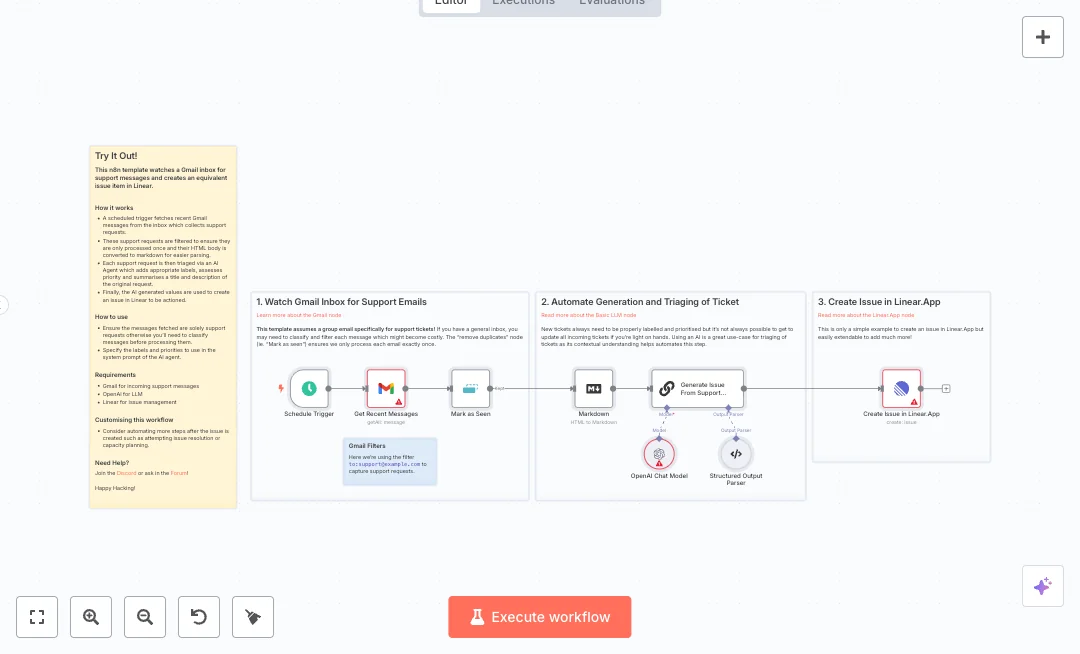
Automate Gmail to Linear Ticket Management
Teams get a lot of support emails and need a fast way to turn them into work items. This setup checks a shared Gmail inbox, sorts each message with AI, and opens a clear issue in Linear. Support and product groups get ready to work tickets with labels and priority already set. A schedule runs on a timer and pulls recent messages from Gmail using a search like to:support@example.com. Duplicates are ignored by marking each email id as seen, and the HTML body is converted to markdown for clean reading. An AI model then creates labels, sets a priority score, and rewrites a short title and description using a strict schema so fields are reliable. A chain builds the final content with reporter and time stamps. The result is sent to Linear to create an issue that includes a clear summary and a readable description. Use your own support address in the Gmail filter and adjust the prompt to list the label names and the priority scale used by your team. Expect less manual triage time, faster handoffs, and a more consistent backlog. Many teams cut daily triage from about 30 minutes to around 5 minutes. This fits groups that route support to engineering or product and want a simple flow that runs all day without babysitting.
13 views
view
n8n
Customer Support
Automate Gmail and Outlook Support Replies
Turn inbound email into fast, clear replies with a simple review step. Ideal for support teams that need quick answers without losing control. New messages are read, summarized, drafted, and sent only after approval. Incoming emails are captured over IMAP from Gmail or Outlook. The message is converted to Markdown so the model can read it clearly, then a summarization chain creates a short brief in about 100 words. An agent can reference your business knowledge to keep answers on brand and policy. A writing node produces a professional reply under 100 words, and a reviewer receives both the original email and the draft for a quick check. The final email uses Re plus the original subject and goes back to the sender through SMTP using your mailbox details. You only need IMAP and SMTP access plus API keys for the language models. Most teams cut reply prep from 10 minutes to 1 minute and keep a steady tone across many agents. Great fit for support queues, shared mailboxes, and any team that wants AI assistance with a human in the loop.
10 views
view
See More Templates

These templates were sourced from publicly available materials across the web, including n8n’s official website, YouTube and public GitHub repositories. We have consolidated and categorized them for easy search and filtering, and supplemented them with links to integrations, step-by-step setup instructions, and personalized support in the Futurise community. Content in this library is provided for education, evaluation and internal use. Users are responsible for checking and complying with the license terms with the author of the templates before commercial use or redistribution.Where an original author was identified, attribution has been provided. Some templates did not include author information. If you know who created this template, please let us know so we can add the appropriate credit and reference link. If you are the author and would like this template removed from the library, email us at info@futurise.com and we will remove it promptly.